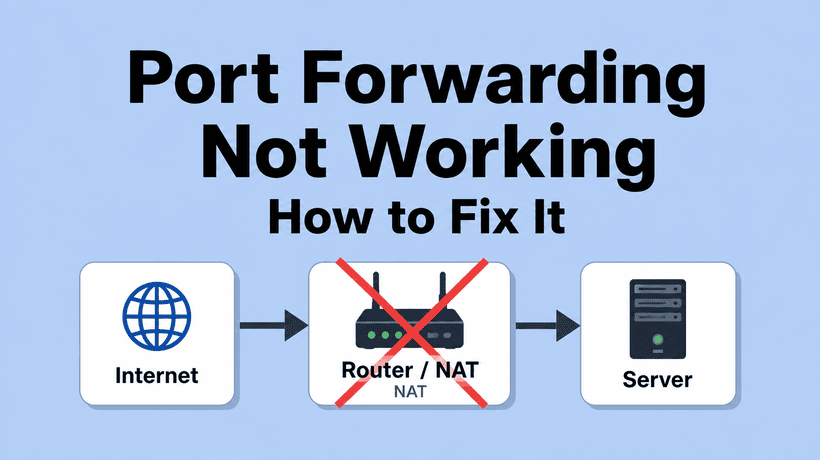
Port forwarding looks simple until it does not work. You create the rule, point it at the right device, test from outside the network, and still get a timeout.
The usual problem is that port forwarding is only one link in the chain. The service must be listening, the device firewall must allow it, the router must forward the right protocol, the WAN address must actually be reachable from the internet, and the ISP must not be putting you behind CGNAT or blocking the port.
Quick answer
To fix port forwarding not working, confirm the service is listening on the target device, set a static DHCP reservation, forward the correct TCP or UDP port to that device, allow the port through the host firewall, test from outside your network, compare your router WAN IP with your public IP, and check for double NAT or CGNAT. If the router WAN IP is private, 100.64.0.0/10, or different from your public IP, normal inbound port forwarding may not work until the upstream NAT is removed or your ISP provides a real public address.
Related troubleshooting paths: if the outside port opens but the hostname still fails, use the DNS server not responding checklist. If CGNAT pushes you toward a VPN or tunnel workaround, the VPN tunnel up but no traffic guide is the next place to check routing. If resolver choice is part of the setup, compare options in the best public DNS providers guide.
The port forwarding path
nIf the router translation piece is still fuzzy, read What Is NAT? before changing more forwarding rules.
nA working inbound connection has to pass through every step below:
- Client on the internet connects to your public IP and port.
- The ISP delivers that traffic to your router.
- The router has a port forwarding rule for that TCP or UDP port.
- The rule points to the correct internal device IP.
- The device firewall allows the connection.
- The application is listening on that port.
- The application replies and the router translates the return traffic back out.
If any step fails, an outside port check will usually show closed, filtered, refused, or timed out.
Step 1: Make sure the service is actually listening
Before touching the router, check the server itself. A port forward cannot fix an application that is not running.
Windows
netstat -ano | findstr :25565
netstat -ano | findstr LISTENING
Replace 25565 with the port you are forwarding. If nothing is listening, start the application or fix its bind address.
Linux
sudo ss -ltnp
sudo ss -lunp
sudo ss -ltnp 'sport = :8080'
Use -t for TCP and -u for UDP. If the service is bound only to 127.0.0.1, it is listening only on localhost. For port forwarding, it usually needs to listen on the LAN address or all interfaces.
Step 2: Give the device a stable internal IP
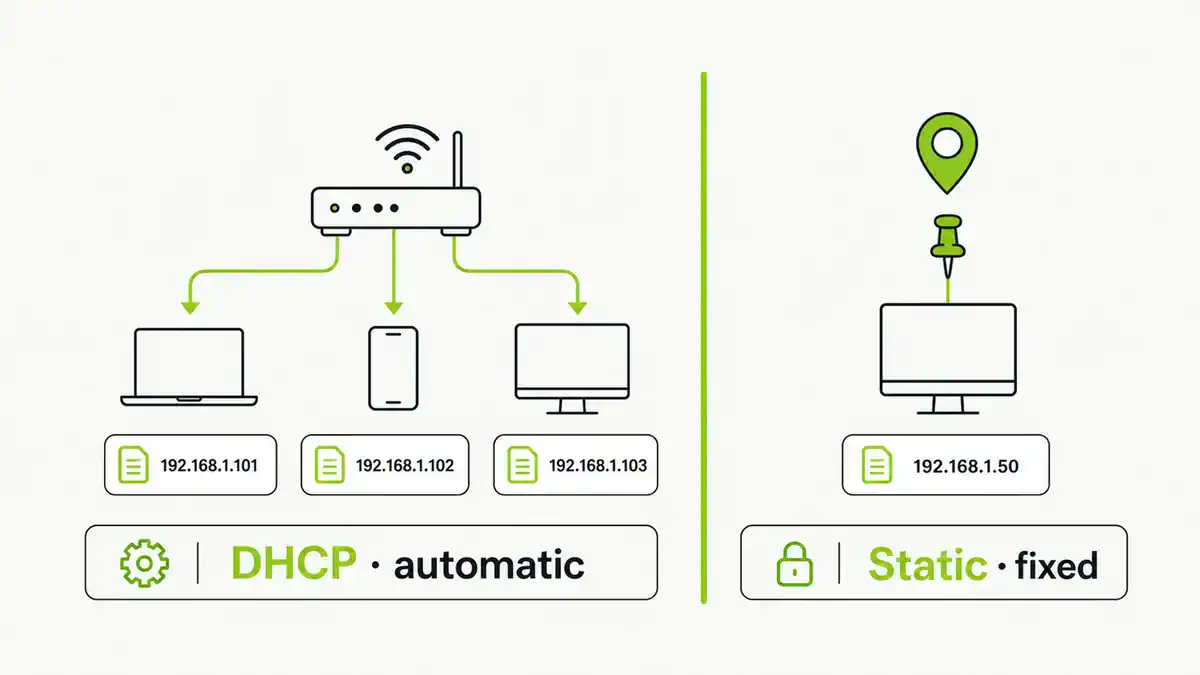
Port forwarding rules point to an internal IP address. If DHCP gives your server a different IP tomorrow, the router rule will keep pointing at the old address.
Fix this with a DHCP reservation on the router. A reservation is usually better than manually setting a static IP on the device because the router still manages the address plan.
Windows: ipconfig
Linux:   ip addr
macOS:   ifconfig
Record the internal IP, then create or confirm the router rule points to that exact address.
Step 3: Forward the correct protocol
TCP and UDP are different. A TCP rule does not forward UDP unless the router has an explicit option for both.
| Service type | Typical protocol | Common mistake |
|---|---|---|
| Web server | TCP 80 or TCP 443 | Forwarding the wrong internal port |
| Minecraft Java server | TCP 25565 | Server not listening or firewall blocking it |
| WireGuard | UDP 51820 | Creating a TCP rule instead of UDP |
| Game servers | Often UDP, sometimes TCP and UDP | Only forwarding one protocol |
| Remote desktop | TCP 3389 | Exposing RDP directly to the internet |
If a guide says UDP, do not create only a TCP rule. If it says both, create both or select the router’s TCP/UDP option.
Step 4: Allow the host firewall
A router can forward traffic perfectly and the target device can still drop it. This is common on Windows, Ubuntu, and servers running Docker or virtualization.
Windows
Check Windows Defender Firewall inbound rules for the application or port. For quick testing, you can temporarily allow the port, then tighten the rule later.
Ubuntu with UFW
sudo ufw status verbose
sudo ufw allow 8080/tcp
sudo ufw allow 51820/udp
Only allow the protocol you actually need. Opening both TCP and UDP out of habit makes the service harder to reason about.
Step 5: Test from outside your network
Testing from inside the same Wi-Fi can be misleading because some routers do not support NAT loopback or hairpin NAT. You may type your public IP from home, get a failure, and assume port forwarding is broken when external users can connect fine.
Use a real outside path:
- Mobile data with Wi-Fi disabled.
- A VPS or remote shell.
- A friend on another network.
- An external port check for TCP services.
Windows outside test
Test-NetConnection your.public.ip.address -Port 8080Linux or macOS outside test
nc -vz your.public.ip.address 8080For UDP, testing is harder because UDP does not establish a connection like TCP. Use the actual client application, packet captures, application logs, or a protocol-specific test.
Step 6: Check for double NAT and CGNAT
If your WAN IP points to an upstream router, read Double NAT Explained: How to Detect and Fix It before changing more port forwarding rules.
This is the big one. If your router does not have a real public IP on its WAN interface, inbound port forwarding may never reach it.
Compare:
- The WAN or internet IP shown on your router.
- The public IP shown by a site like
ifconfig.me,icanhazip.com, or your ISP account page.
If they do not match, there is probably another NAT device upstream.
| Router WAN IP | What it suggests | What to do |
|---|---|---|
| 192.168.x.x | Double NAT behind another router | Bridge the upstream modem/router or forward on both devices |
| 10.x.x.x | Private upstream NAT | Check modem/router mode or ISP setup |
| 172.16.x.x to 172.31.x.x | Private upstream NAT | Check for another router or ISP NAT |
| 100.64.x.x to 100.127.x.x | Shared address space often used for CGNAT | Ask the ISP for a public IPv4, static IP, or use a tunnel/VPN alternative |
| Matches public IP | Router likely has a real public IPv4 | Continue checking firewall, rule, protocol, and service listener |
CGNAT is common on mobile broadband, fixed wireless, some residential fibre plans, and cheaper ISP plans. If your ISP uses CGNAT and will not provide a public IPv4, normal inbound port forwarding from the internet will not work.
Step 7: Watch for ISP blocks and dynamic IP changes
Some ISPs block common inbound ports, especially residential inbound SMTP on TCP 25 and sometimes common server ports. Others allow inbound traffic but change your public IP periodically.
- If the port works for a while and then stops, check whether your public IP changed.
- If one port never works but a high random port does, the ISP or router may be blocking the original port.
- If you need a stable hostname, use dynamic DNS or a provider-hosted endpoint.
Docker, VMs, and local proxies
Containers and virtual machines add another layer. You may have a router rule pointing to the host, but the container port is not published, or the VM is behind NAT instead of bridged networking.
Docker
docker ps
docker port container_name
docker run -p 8080:80 image_name
The host must receive traffic on the forwarded port and Docker must publish that traffic into the container.
Virtual machines
If the VM is in NAT mode, your host may need a separate VM port forwarding rule. If the VM is bridged, the router can usually forward directly to the VM’s LAN IP.
A reliable troubleshooting sequence
- Confirm the application is running.
- Confirm the application is listening on the expected TCP or UDP port.
- Confirm it is listening on the LAN interface, not only localhost.
- Reserve the server’s internal IP in DHCP.
- Confirm the router rule points to that internal IP.
- Confirm the external and internal ports are correct.
- Confirm the protocol is correct.
- Allow the port through the host firewall.
- Test from outside the local network.
- Compare router WAN IP with public IP.
- Fix double NAT or CGNAT if present.
- Check ISP blocks, dynamic DNS, Docker, and VM networking.
If you follow that order, you avoid the most common trap: repeatedly editing router rules when the real problem is the service, firewall, or upstream NAT.
FAQ
Why is my port closed after port forwarding?
The service may not be listening, the device firewall may be blocking it, the router rule may point to the wrong IP, the protocol may be wrong, or your router may be behind another NAT layer such as CGNAT.
Can CGNAT stop port forwarding?
Yes. If your ISP places you behind carrier-grade NAT, unsolicited inbound connections from the public internet usually cannot reach your router. Ask for a public IPv4, static IP, business plan, or use a tunnel or VPN-style alternative.
Why does port forwarding work inside my network but not outside?
Inside tests may use the LAN IP, cached DNS, or router loopback behavior. Always test from mobile data or another external network before deciding whether the public path works.
Do I need TCP or UDP for port forwarding?
It depends on the application. Web servers use TCP. WireGuard uses UDP by default. Many games use UDP, TCP, or both. Check the application documentation and forward the exact protocol it requires.
Is opening ports dangerous?
It can be. Any forwarded port exposes a service to the internet. Keep the application updated, use strong authentication, avoid exposing admin panels, restrict source IPs where possible, and prefer VPN or tunnel access for sensitive services.
Final thoughts
Port forwarding is not just a router checkbox. It is an end-to-end path from the public internet to an application on your LAN.
Start at the service, then move outward: listener, firewall, internal IP, router rule, WAN IP, ISP path. Once you know which layer is failing, the fix is usually obvious.
If you would rather skip port forwarding entirely, a mesh VPN handles NAT traversal for you — see our comparison of Tailscale vs WireGuard.
Sources and useful references
- RFC 6598: Shared Address Space for CGN
- Microsoft netstat command documentation
- Ubuntu Server firewall and UFW documentation
Get notified whenever I post something new. No spam, and it helps a lot!


Leave a Reply