Updated June 2026: the best public DNS provider depends on what you want from DNS. Use Cloudflare or Google when you want simple fast resolution, Quad9 when you want malware-domain blocking with a privacy focus, AdGuard DNS when you want DNS-level ad/tracker filtering, CleanBrowsing or OpenDNS FamilyShield for family filtering, and NextDNS when you want custom profiles, logs, blocklists, and per-network control.
If DNS is currently broken, start with DNS Server Not Responding: How to Fix It. If you are choosing an upstream resolver for Pi-hole, combine this guide with Best 2026 Pi-hole Blocklists so you separate upstream DNS from local blocklist filtering. If you are deciding which local DNS blocker to run, compare Pi-hole vs AdGuard Home before tuning upstream DNS. If AdGuard Home is your pick, the AdGuard Home blocklists guide covers the filtering layer.
Quick answer
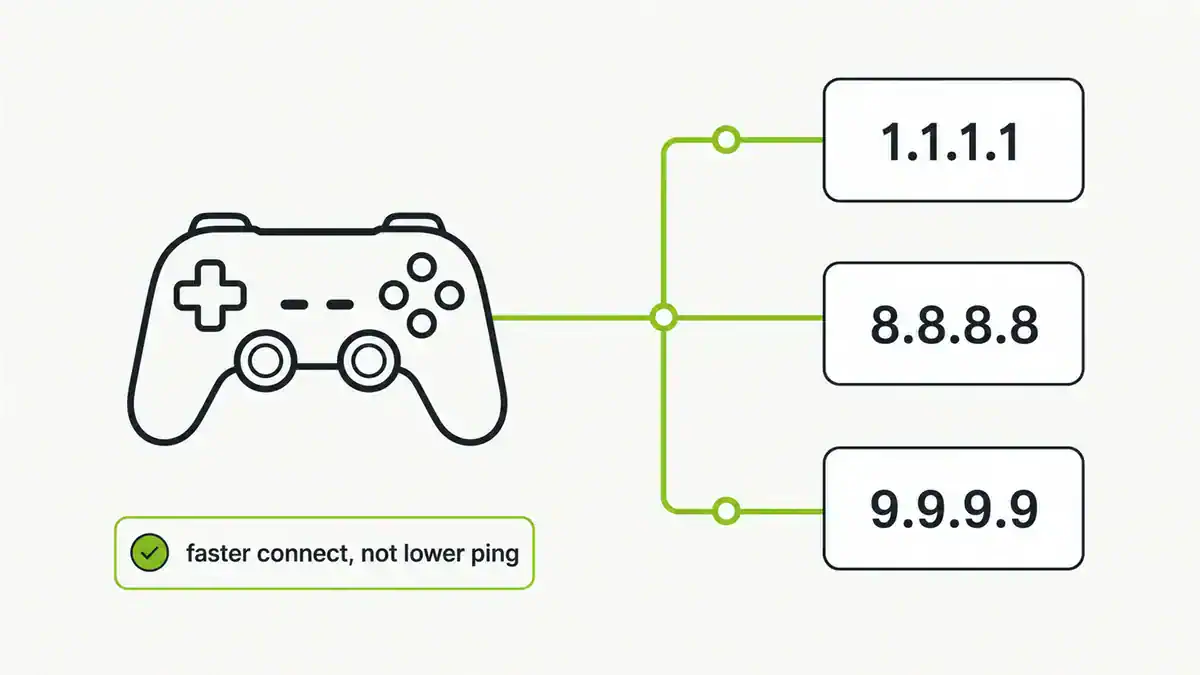
For most home users in 2026, test Cloudflare 1.1.1.1, Google 8.8.8.8, and Quad9 9.9.9.9 first. Use one provider pair at a time rather than mixing providers randomly. Mixing a filtering resolver with a non-filtering resolver can make troubleshooting confusing because your device may fail over to the backup resolver and behave differently.
Best public DNS providers for 2026
| Provider | IPv4 servers | Best for | Filtering |
|---|---|---|---|
| Cloudflare | 1.1.1.1, 1.0.0.1 | Fast simple DNS | Optional malware/family variants |
| Google Public DNS | 8.8.8.8, 8.8.4.4 | Availability and compatibility | No content filtering by default |
| Quad9 | 9.9.9.9, 149.112.112.112 | Security-focused DNS | Blocks known malicious domains |
| AdGuard DNS | 94.140.14.14, 94.140.15.15 | Ad/tracker blocking | Ads, trackers, malware; family variants available |
| CleanBrowsing | 185.228.168.9, 185.228.169.9 | Family and security filters | Security, adult, and family profiles |
| OpenDNS | 208.67.222.222, 208.67.220.220 | Home controls and filtering | Configurable filtering; FamilyShield has separate IPs |
| NextDNS | Profile-based | Custom rules and analytics | Custom blocklists, logs, profiles, allow/deny rules |
Cloudflare DNS
Cloudflare’s standard resolver is:
IPv4: 1.1.1.1, 1.0.0.1
IPv6: 2606:4700:4700::1111, 2606:4700:4700::1001
Pick Cloudflare when you want a fast resolver that is easy to remember and available on almost every setup screen. Cloudflare also offers 1.1.1.1 for Families variants for malware blocking and adult-content filtering.
Google Public DNS
Google Public DNS is:
IPv4: 8.8.8.8, 8.8.4.4
IPv6: 2001:4860:4860::8888, 2001:4860:4860::8844
Pick Google when you want broad compatibility and high availability. It is also a useful sanity check resolver when you are troubleshooting DNS because it is so widely reachable.
Quad9
Quad9’s recommended secure service is:
IPv4: 9.9.9.9, 149.112.112.112
IPv6: 2620:fe::fe, 2620:fe::9
DoT hostname: dns.quad9.net
DoH URL: https://dns.quad9.net/dns-query
Pick Quad9 if your priority is blocking known malicious domains while using a public resolver. Do not mix Quad9’s secured service with its unsecured service in the same DNS configuration unless you are intentionally testing, because it creates inconsistent protection.
AdGuard DNS
AdGuard DNS default filtering servers are:
IPv4: 94.140.14.14, 94.140.15.15
IPv6: 2a10:50c0::ad1:ff, 2a10:50c0::ad2:ff
Pick AdGuard DNS if you want DNS-level ad and tracker blocking without running your own Pi-hole. If you already run Pi-hole, use AdGuard carefully as an upstream resolver because both layers may filter, making false positives harder to trace.
CleanBrowsing
CleanBrowsing’s security filter is:
IPv4: 185.228.168.9, 185.228.169.9
IPv6: 2a0d:2a00:1::2, 2a0d:2a00:2::2
Pick CleanBrowsing for family, adult-content, or security-filter profiles. It is a practical option for households and schools that want DNS filtering without managing a local DNS server.
OpenDNS and FamilyShield
OpenDNS standard servers are:
IPv4: 208.67.222.222, 208.67.220.220OpenDNS FamilyShield uses different preconfigured addresses:
IPv4: 208.67.222.123, 208.67.220.123Pick OpenDNS when you want a familiar DNS filtering option with home controls. Pick FamilyShield if you specifically want preconfigured adult-content filtering without custom categories.
NextDNS
NextDNS is different from the fixed-IP providers above. You create a profile, then use profile-specific DNS-over-HTTPS, DNS-over-TLS, router, or app configuration. It is the best fit when you want custom blocklists, analytics, per-device rules, rewrites, and logs.
If you want Pi-hole-style control without hosting Pi-hole, NextDNS is worth testing. If you already host Pi-hole, NextDNS can be an upstream resolver, but remember that you are now troubleshooting two filtering layers.
How to choose the right DNS provider
| Goal | Start with | Why |
|---|---|---|
| Fast general browsing | Cloudflare or Google | Simple, global, easy to test |
| Malware-domain blocking | Quad9 | Filtering is built into the recommended secure service |
| Ad/tracker filtering without Pi-hole | AdGuard DNS | Filtering is the main feature |
| Family filtering | CleanBrowsing or OpenDNS FamilyShield | Preset family/adult-content profiles |
| Custom blocklists and logs | NextDNS or Pi-hole | More control, more responsibility |
| Self-hosted DNS filtering | Pi-hole | Local control with query logs and allowlists |
How to set public DNS on your router
Router-level DNS applies to most devices on your home network, so it is the cleanest place to start.
- Log in to your router admin page.
- Find WAN, Internet, DHCP, or DNS settings.
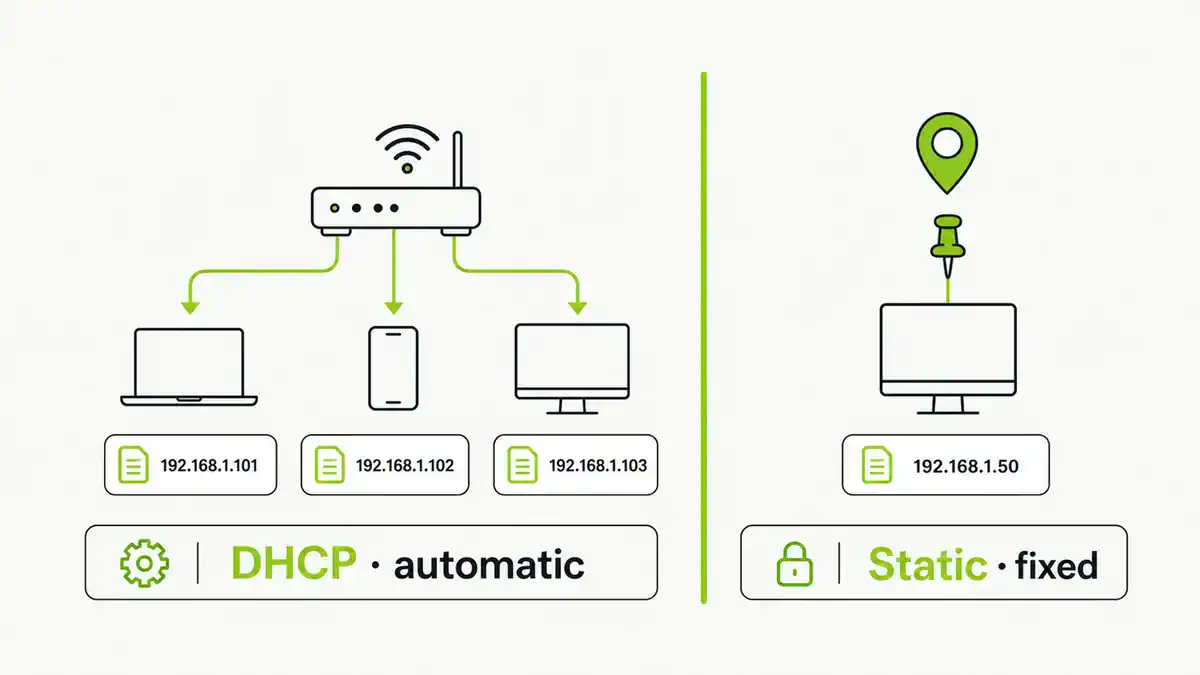
- Enter the primary and secondary DNS addresses from one provider.
- Save the settings.
- Reconnect one client or renew its DHCP lease.
- Test with
nslookupordig.
If you are using Pi-hole, router DHCP should usually hand out the Pi-hole IP as the DNS server, not the upstream public DNS provider directly. Pi-hole then forwards allowed queries upstream. If clients can bypass Pi-hole or ads still appear, work through Pi-hole Not Blocking Ads before adding more blocklists. If you want built-in encrypted DNS, per-client rules, and an interface that feels more appliance-like, compare Pi-hole vs AdGuard Home, then use Best AdGuard Home Blocklists for 2026 if you choose AdGuard Home.
How to set public DNS on Windows, macOS, iPhone, and Android
Windows 10 and 11
Open Settings, go to Network & Internet, edit the active adapter DNS settings, and enter the provider’s IPv4 or IPv6 addresses. After changing DNS, run:
ipconfig /flushdns
nslookup burstbytes.com.au
If you need the full cache-clearing sequence for Windows, macOS, Linux, Chrome, Edge, routers, or Pi-hole, use How to Flush DNS Cache before retesting the provider. If the browser specifically reports DNS_PROBE_FINISHED_NXDOMAIN, confirm whether the domain, cache, hosts file, VPN DNS, or resolver is returning the missing-name answer.
macOS
Open System Settings, choose the active network interface, open DNS settings, and add the DNS servers. Then test with:
sudo killall -HUP mDNSResponder
dig burstbytes.com.au
iPhone and iPad
Open Settings, tap Wi-Fi, tap the information icon next to your network, choose Configure DNS, switch to Manual, remove old entries, add the new DNS servers, and save.
Android
For private DNS, Android expects a DNS-over-TLS hostname rather than raw IPv4 addresses. For Wi-Fi-specific DNS, edit the network, open advanced options, and enter DNS 1 and DNS 2 where your Android version exposes those fields.
How to test your DNS change
After changing DNS, test three things: does DNS resolve, is the expected resolver answering, and did the change accidentally break local names?
nslookup burstbytes.com.au
nslookup burstbytes.com.au 1.1.1.1
dig burstbytes.com.au
dig @9.9.9.9 burstbytes.com.au
If IP connectivity works but domain names fail, follow the full DNS server not responding checklist. If inbound access, game NAT type, or port forwarding is your actual problem, changing DNS will not fix it; read What Is NAT? and Port Forwarding Not Working instead.
Provider sources checked for this update
For this June 2026 refresh, I checked the current setup/provider pages for Cloudflare DNS, Google Public DNS, Quad9, AdGuard DNS, CleanBrowsing filters, OpenDNS, and NextDNS setup guidance. DNS providers can add new filtering profiles or encrypted DNS hostnames over time, so verify the provider’s own page before a production rollout.
FAQ
What is the fastest public DNS provider?
There is no universal fastest provider. Test Cloudflare, Google, and Quad9 from your network because routing and ISP peering matter more than generic rankings.
Should I mix DNS providers?
Usually no. Use the primary and secondary addresses from the same provider so filtering, logging, and troubleshooting stay consistent.
Is public DNS more private than ISP DNS?
It can be, but it depends on the provider’s privacy policy, logging, jurisdiction, and whether you use encrypted DNS. Public DNS moves trust from your ISP to the resolver provider.
Should Pi-hole use public DNS upstream?
Yes, that is common. Your clients query Pi-hole, Pi-hole blocks or allows domains, and allowed queries go upstream to a provider such as Cloudflare, Google, Quad9, or a recursive resolver you run yourself.
Conclusion
Use Cloudflare or Google for simple speed and availability, Quad9 for malware-domain blocking, AdGuard DNS for DNS-level ad/tracker filtering, CleanBrowsing or OpenDNS FamilyShield for family filtering, and NextDNS or Pi-hole when you want custom control. Change one thing at a time, test with nslookup or dig, and keep your DNS design simple enough to troubleshoot later. To stop your ISP from seeing those lookups, encrypt them too — see DNS over HTTPS (DoH).
Get notified whenever I post something new. No spam, and it helps a lot!


Leave a Reply