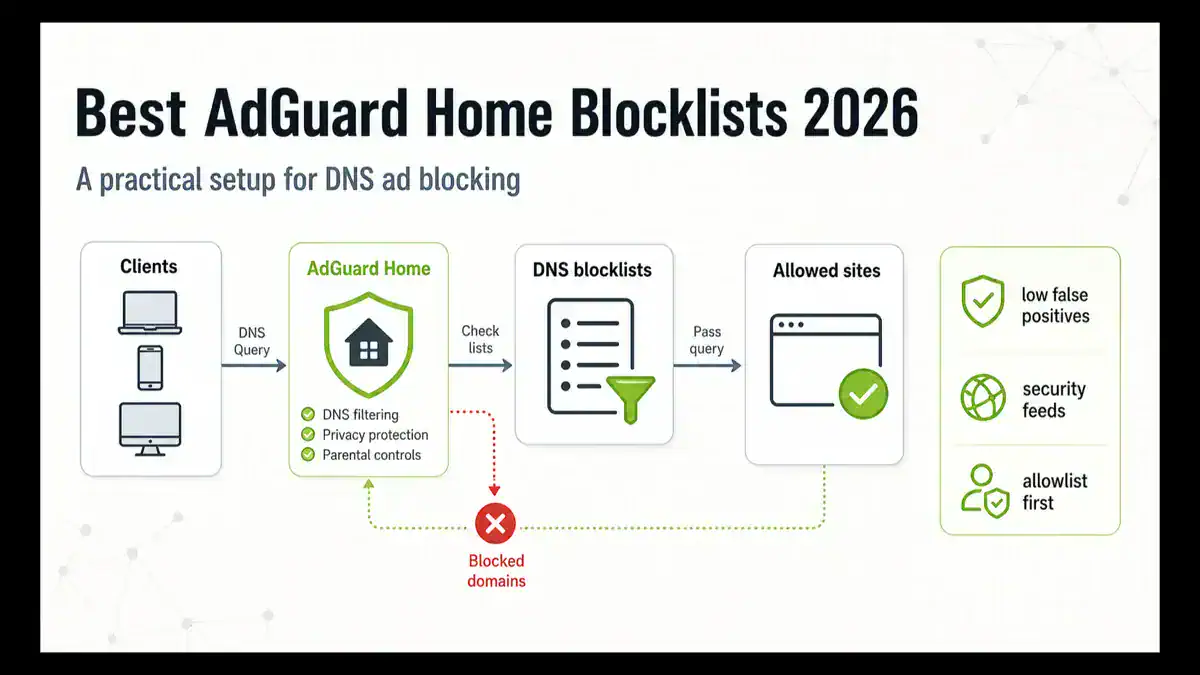
Updated June 2026: the best AdGuard Home blocklist setup for most home networks is a small, maintained set of DNS-focused lists, not a giant stack of every list you can find. Start with AdGuard DNS filter as the baseline, add one broad list such as HaGeZi Multi Normal or OISD Big if you want stronger coverage, then add focused security feeds only when you are prepared to use the query log and allowlist false positives.
AdGuard Home is a network-wide DNS filtering tool. Your devices ask it to resolve a domain, AdGuard Home checks DNS blocklists, custom filtering rules, client settings, and safe-browsing options, then either blocks the query or forwards it upstream. If you are still choosing between blockers, read Pi-hole vs AdGuard Home. If you already run Pi-hole and want the matching list strategy, use Best 2026 Pi-hole Blocklists.
Quick answer: best AdGuard Home blocklists
For most people, use AdGuard DNS filter plus either HaGeZi Multi Normal or OISD Big. Keep the setup boring at first. If you want stronger malware, phishing, scam, or telemetry filtering, add one focused threat list and test normal sites before adding more. If you want the least maintenance, use AdGuard DNS filter alone for a few days, then decide whether you actually need extra lists.
| Setup | Best for | Maintenance level | My take |
|---|---|---|---|
| AdGuard DNS filter | Baseline installs | Low | The safest starting point because it is designed for DNS-level AdGuard filtering. |
| AdGuard DNS filter + OISD Big | Low false positives | Low | A simple two-list setup when you want broad blocking without constant breakage. |
| AdGuard DNS filter + HaGeZi Multi Normal | Most technical home networks | Low to medium | Strong general coverage for ads, trackers, telemetry, phishing, malware, and junk domains. |
| HaGeZi Pro or stronger | Home labs and technical households | Medium to high | Good when someone can review the query log and maintain allowlist entries. |
| Many overlapping lists | Almost nobody | High | Looks impressive, but it makes false positives and troubleshooting harder. |
Before adding blocklists
Make sure AdGuard Home is actually in the DNS path first. If your router, browser, VPN, IPv6 settings, or device DNS bypasses AdGuard Home, no blocklist will help. This is the same trap people hit with Pi-hole, and the troubleshooting pattern is similar to Pi-hole Not Blocking Ads.
Check these before changing your lists:
- The client appears in AdGuard Home’s query log.
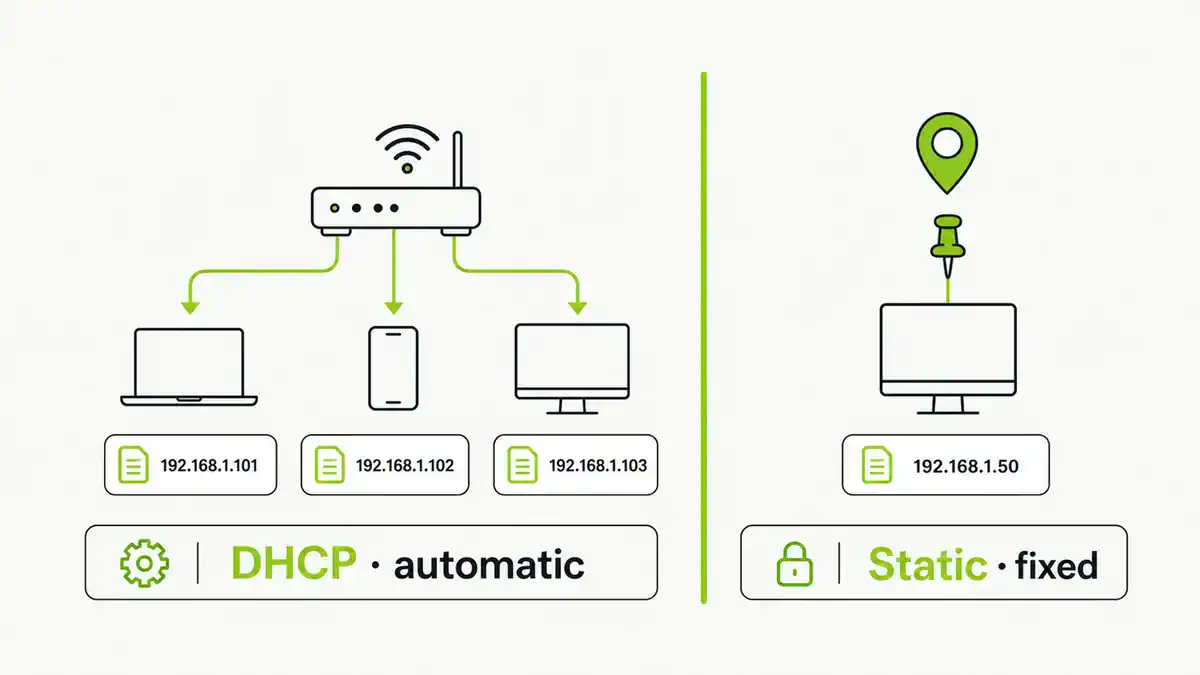
- Your router DHCP hands out the AdGuard Home IP as DNS.
- IPv6 DNS is not bypassing your local resolver.
- Browser Secure DNS or DNS-over-HTTPS is disabled for testing.
- VPN clients are not replacing DNS while connected.
- Filtering is enabled globally and for the affected client.
If DNS itself is failing rather than ads leaking, start with DNS Server Not Responding. If only one browser shows name errors, check DNS_PROBE_FINISHED_NXDOMAIN and How to Flush DNS Cache before blaming the list.
How to install an AdGuard Home blocklist
In AdGuard Home, go to Filters, then DNS blocklists. Click Add blocklist, choose a list from the built-in catalog or paste a custom URL, save it, and update filters. Then open the query log while you test normal websites, banking pages, shopping flows, smart TV apps, and mobile apps.
For Docker or headless installs, you can also keep a backup of AdGuardHome.yaml before major filter changes. Do not edit the config file while AdGuard Home is running unless you already understand how your deployment manages state. The web UI is safer for normal list changes.
Good starter URLs
These are practical starting points. Do not add every URL here at once. Pick one setup, test it, and only add another list if it solves a real gap.
AdGuard DNS filter
AdGuard DNS filter is the natural baseline for AdGuard Home because it is built for DNS-level blocking and is used as AdGuard Home’s default DNS filter.
https://adguardteam.github.io/AdGuardSDNSFilter/Filters/filter.txtOISD Big
OISD Big is a good choice when you want a simple, broad list that aims to keep false positives low. It is especially useful for family networks or networks you do not want to babysit every day.
https://big.oisd.nl/HaGeZi Multi Normal
HaGeZi Multi Normal is my usual pick for a technical home network that wants stronger coverage than a baseline setup without jumping straight to aggressive breakage.
https://raw.githubusercontent.com/hagezi/dns-blocklists/main/adblock/multi.txtHaGeZi Threat Intelligence Feed
Add a focused threat feed if you care more about malicious, phishing, scam, and abuse domains than ordinary ad cleanup. This is a better second step than adding ten general ad lists that overlap each other.
https://raw.githubusercontent.com/hagezi/dns-blocklists/main/adblock/tif.txtMy recommended setups
Low-maintenance home setup
Use this when you want fewer ads and trackers without becoming the household DNS support desk.
https://adguardteam.github.io/AdGuardSDNSFilter/Filters/filter.txt
https://big.oisd.nl/
Run this for a few days before adding anything else. If one site breaks, use the query log to find the domain that was blocked, then allowlist only the domain you need.
Stronger home lab setup
Use this when you are comfortable reading logs and fixing false positives.
https://adguardteam.github.io/AdGuardSDNSFilter/Filters/filter.txt
https://raw.githubusercontent.com/hagezi/dns-blocklists/main/adblock/multi.txt
https://raw.githubusercontent.com/hagezi/dns-blocklists/main/adblock/tif.txt
This gives you a strong general list plus a focused threat feed. It can still break login, payment, telemetry-heavy, smart TV, and app flows, so do not run it on someone else’s network unless you are prepared to support it.
Strict setup
If you move to HaGeZi Pro, Ultimate, gambling, anti-piracy, or other aggressive lists, treat the network like a managed environment. Document what you added, test important devices, and expect allowlist work.
Strict lists are not magic. They can block useful domains, especially for banks, streaming apps, delivery apps, vendor update checks, analytics dashboards, and authentication services.
What not to do
- Do not add twenty lists just because a forum thread includes them.
- Do not mix many overlapping lists and then wonder which one broke a site.
- Do not add browser adblock lists unless they are known to work at DNS level.
- Do not expect DNS blocking to remove every YouTube, Twitch, TikTok, or in-app ad.
- Do not use a public DNS fallback on clients, because they may bypass AdGuard Home.
AdGuard Home is a DNS filter. It blocks domains. It cannot inspect page content after a connection is made, and it cannot safely separate ads that come from the same domain as the app or video content.
How to troubleshoot false positives
When a site or app breaks after adding a blocklist, do this before deleting your whole setup:
- Open the AdGuard Home query log.
- Reproduce the broken page or app from the affected device.
- Filter the query log by that client.
- Look for recently blocked domains around the time the app failed.
- Temporarily unblock one candidate domain.
- Refresh the app and confirm whether it fixed the issue.
- Keep the allowlist entry only if it is genuinely needed.
If you do not see the client in the query log, the problem is not the blocklist. Fix DNS routing, DHCP, IPv6, browser Secure DNS, VPN DNS, or router settings first. If you are choosing upstream DNS for AdGuard Home, compare options in Best Public DNS Providers for 2026.
AdGuard Home blocklist checklist
- Start with one baseline DNS filter.
- Add one broad list only if the baseline misses domains you care about.
- Add focused security lists only when security filtering is the goal.
- Use the query log before changing lists.
- Keep allowlists small and documented.
- Test banking, shopping, streaming, smart TV, and mobile apps after changes.
- Do not treat DNS filtering as a replacement for browser content blocking.
Sources checked
For this June 2026 refresh, I checked the AdGuard Home project, the AdGuard Home wiki, the AdGuard Home configuration guide, the AdGuard Home FAQ, the AdGuard Host Lists Registry, the AdGuard DNS filter repository, the HaGeZi DNS blocklists repository, and OISD’s AdGuard Home setup page. Blocklist URLs and recommendations can change, so verify upstream project pages before rolling out a strict setup to a network you rely on.
FAQ
What is the best AdGuard Home blocklist in 2026?
For most users, start with AdGuard DNS filter, then add OISD Big or HaGeZi Multi Normal if you need broader coverage. Keep the setup small enough that you can troubleshoot it.
Should I use OISD or HaGeZi with AdGuard Home?
Use OISD Big if low false positives matter most. Use HaGeZi Multi Normal if you want stronger technical-user coverage and are comfortable checking the query log when something breaks.
Does AdGuard Home block YouTube ads?
Not reliably. YouTube and many streaming apps can serve ads from domains that also serve normal content, so DNS-level blocking is the wrong tool for separating every ad.
Can I use Pi-hole blocklists in AdGuard Home?
Sometimes, but DNS-level AdGuard syntax and hosts-style lists behave differently. Prefer lists that explicitly support AdGuard Home or DNS-level blocking. If you are moving between tools, read Pi-hole vs AdGuard Home.
Final take
The best AdGuard Home blocklist setup is the one you can maintain. Start with AdGuard DNS filter, add OISD Big or HaGeZi Multi Normal only if you need more coverage, and use focused threat feeds when security is the goal. A clean two-list setup beats a giant pile of stale overlapping lists.
For the broader DNS path, compare Pi-hole vs AdGuard Home, choose upstream resolvers with the public DNS guide, and keep the DNS troubleshooting checklist handy for when the problem is routing rather than filtering.
Get notified whenever I post something new. No spam, and it helps a lot!


Leave a Reply