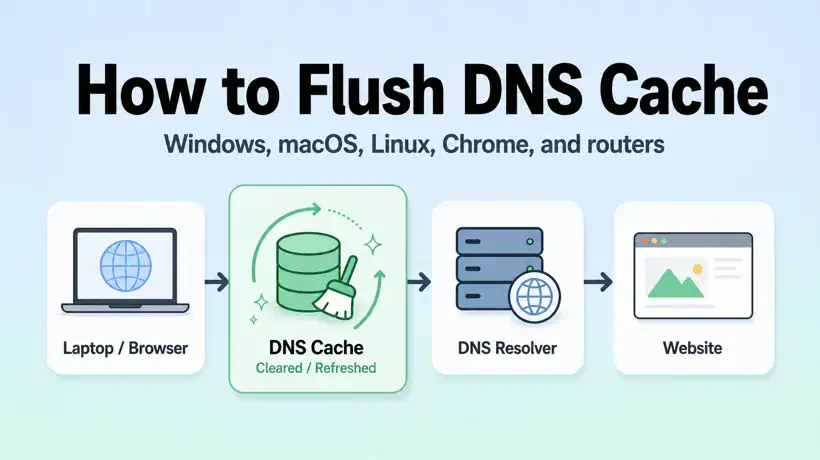
Updated June 2026: flushing the DNS cache is one of the fastest first steps when a website moved servers, a DNS record changed, or your browser keeps opening the wrong address. It is safe to try, but it only clears cached name lookups on the device or service you flush. If the real problem is your DNS server, router, Pi-hole, VPN, or ISP, you still need to troubleshoot the resolver path.
This guide shows how to flush DNS cache on Windows, macOS, Linux, Chrome, Edge, routers, and Pi-hole. If the browser says the DNS server is not responding, pair this with my DNS Server Not Responding checklist. If you are choosing a resolver after the flush, compare options in Best Public DNS Providers for 2026.
Quick answer
To flush DNS cache, run ipconfig /flushdns on Windows, run sudo dscacheutil -flushcache; sudo killall -HUP mDNSResponder on macOS, and run sudo resolvectl flush-caches on Linux systems using systemd-resolved. Then close and reopen the browser, or clear the browser host cache if Chrome or Edge is still using an old DNS answer.
What flushing DNS cache actually does
DNS turns names like blog.burstbytes.com.au into IP addresses. Your operating system, browser, router, DNS resolver, and sometimes security software can cache those answers for a while. Caching makes browsing faster, but it can also hold on to an old or bad answer.
Flushing DNS cache tells that layer to forget stored DNS answers and ask again. It does not change the authoritative DNS record, change your DNS provider, fix a dead internet link, or bypass a blocklist. It just clears cached answers at the place you flushed.
When flushing DNS cache helps
- A website recently changed IP address and your device still opens the old server.
- You changed local DNS, Pi-hole, hosts file, split DNS, or VPN DNS settings.
- Only one browser or one device has the problem.
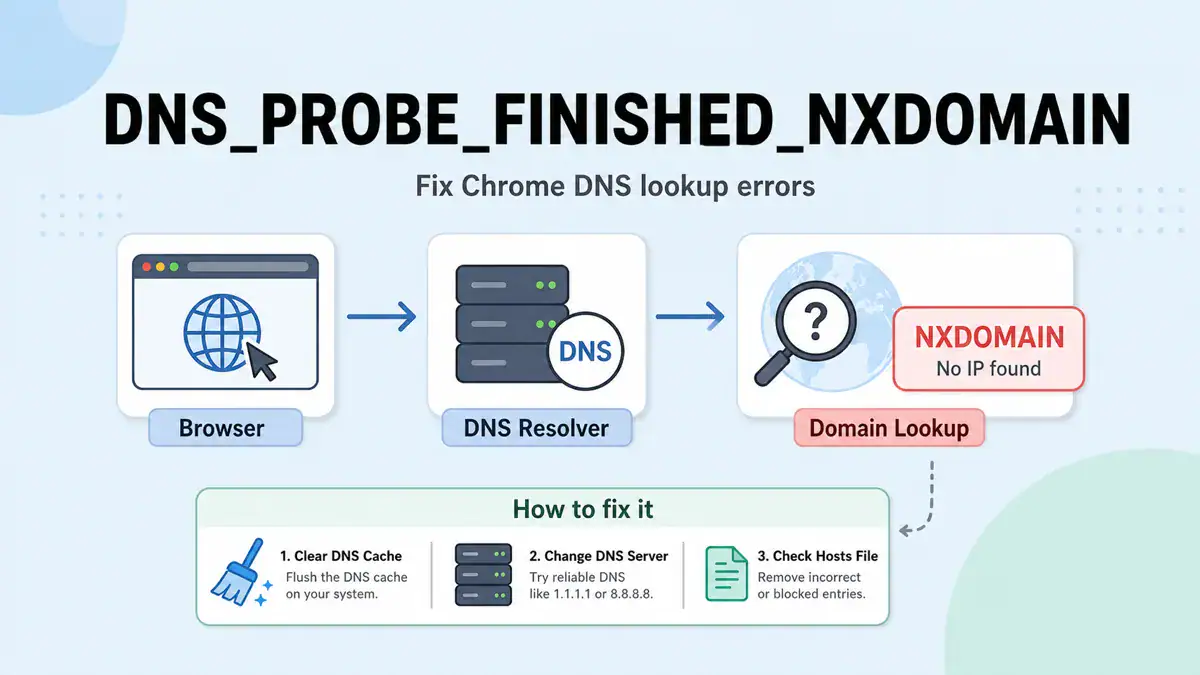
- You see errors like
DNS_PROBE_FINISHED_NXDOMAIN,DNS_PROBE_FINISHED_BAD_CONFIG, or “server IP address could not be found”. - You changed public DNS servers and want the device to query fresh records.
If every device on the network has the same DNS failure, flushing one laptop may not be enough. Check the router DNS settings, upstream resolver, VPN client, firewall, or Pi-hole instead.
Flush DNS cache on Windows 10 and Windows 11
Open Command Prompt as administrator and run:
ipconfig /flushdnsYou should see a message like “Successfully flushed the DNS Resolver Cache.” If the network configuration itself may be stale, renew the DHCP lease too:
ipconfig /release
ipconfig /renew
To inspect what DNS servers Windows is using, run:
ipconfig /allIf flushing helps for a few minutes and then the problem returns, the cached answer was only a symptom. Move to the resolver path in DNS Server Not Responding.
Flush DNS cache on macOS
Open Terminal and run:
sudo dscacheutil -flushcache
sudo killall -HUP mDNSResponder
macOS usually does not print a success message. That is normal. Close and reopen the browser, then test the hostname again.
To see the DNS resolvers macOS is using, run:
scutil --dnsIf you are connected to a VPN, you may see scoped resolvers. That means certain domains may use the VPN DNS server while normal browsing uses another resolver.
Flush DNS cache on Linux
Linux depends on which resolver service is running. On many modern distributions using systemd-resolved, run:
sudo resolvectl flush-cachesThen check statistics or resolver status:
resolvectl statistics
resolvectl status
If the system uses dnsmasq, restart dnsmasq:
sudo systemctl restart dnsmasqIf it uses nscd, restart nscd:
sudo systemctl restart nscdDo not restart resolver services blindly on production servers. First check what is actually managing /etc/resolv.conf, because NetworkManager, systemd-resolved, VPN clients, containers, and custom resolvers can all be involved.
Clear Chrome and Edge DNS cache
Browsers can keep their own host cache. If Windows, macOS, or Linux has been flushed but Chrome still opens the wrong address, clear Chrome’s host cache too:
- Open
chrome://net-internals/#dns. - Click Clear host cache.
- Open
chrome://net-internals/#sockets. - Click Close idle sockets and Flush socket pools.
- Close and reopen the tab.
Microsoft Edge uses the same Chromium-style internal pages, so use edge://net-internals/#dns and edge://net-internals/#sockets.
Flush DNS on a router or Pi-hole
If every device is affected, the stale cache might be on the router, Pi-hole, or another local resolver. Rebooting a home router often clears its DNS cache, but check the router interface first if you manage a business or lab network.
For Pi-hole, update gravity after changing blocklists:
pihole -gIf the issue is a blocked domain rather than a stale DNS answer, flushing cache will not fix it. Use the query log and the list strategy in Best 2026 Pi-hole Blocklists.
How to test before and after flushing DNS
Before flushing, test the current answer:
nslookup example.com
nslookup example.com 1.1.1.1
On macOS or Linux, I usually use dig:
dig example.com
dig @1.1.1.1 example.com
dig @8.8.8.8 example.com
Read the result like this:
| Result | What it means | Next step |
|---|---|---|
| Local lookup is wrong, public resolver is right | Local cache or local resolver issue | Flush local cache, browser cache, router, or Pi-hole |
| All resolvers return the old answer | DNS record or TTL has not changed globally yet | Wait for TTL or verify authoritative DNS |
| IP ping works but names fail | DNS path is broken | Use the DNS troubleshooting checklist |
| Names resolve but site still fails | Not a DNS cache problem | Check web server, routing, firewall, proxy, or TLS |
When flushing DNS will not fix the issue
- The domain’s authoritative DNS record is wrong.
- The TTL has not expired on upstream resolvers.
- Your DNS server is unreachable.
- Pi-hole or another blocklist is intentionally blocking the domain.
- A VPN has installed a scoped or corporate DNS resolver.
- The real issue is NAT, port forwarding, routing, or firewall policy.
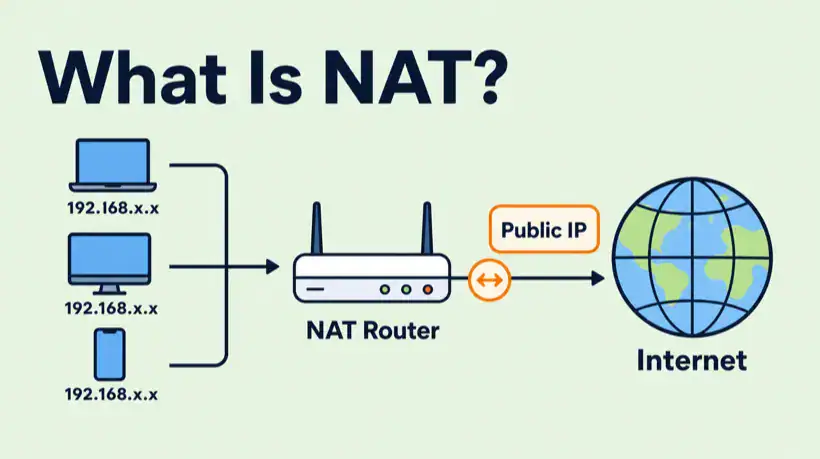
If your symptom is inbound access, strict NAT, or a server that cannot be reached from outside your network, changing or flushing DNS may be a detour. Start with What Is NAT?, Double NAT Explained, or Port Forwarding Not Working.
Sources checked for this guide
For this June 2026 guide, I checked Microsoft’s ipconfig documentation, the resolvectl manual, macOS dscacheutil documentation, and common Chromium host-cache behaviour. Command names can change around resolver services, so check what resolver your device actually uses before restarting system services.
FAQ
Is it safe to flush DNS cache?
Yes. Flushing DNS cache is generally safe. The device will simply ask DNS again the next time it needs a hostname. The first lookup after flushing may be slightly slower.
Does flushing DNS change my DNS server?
No. Flushing DNS clears cached answers. It does not change whether you use your router, ISP DNS, Cloudflare, Google, Quad9, Pi-hole, or another resolver.
How often should I flush DNS cache?
Only when troubleshooting or after a DNS change. If you need to flush DNS constantly, something upstream is misconfigured or returning bad answers.
Why does Chrome still show the old site after flushing Windows DNS?
Chrome may have its own host cache or open sockets. Clear chrome://net-internals/#dns, flush socket pools, and reopen the tab.
Final thoughts
Flushing DNS cache is a quick, low-risk step when a device is holding stale name lookups. Do it at the right layer: browser, operating system, router, or Pi-hole. Then test with nslookup or dig so you know whether the fix worked or whether the real problem is the resolver path.
Get notified whenever I post something new. No spam, and it helps a lot!



Leave a Reply