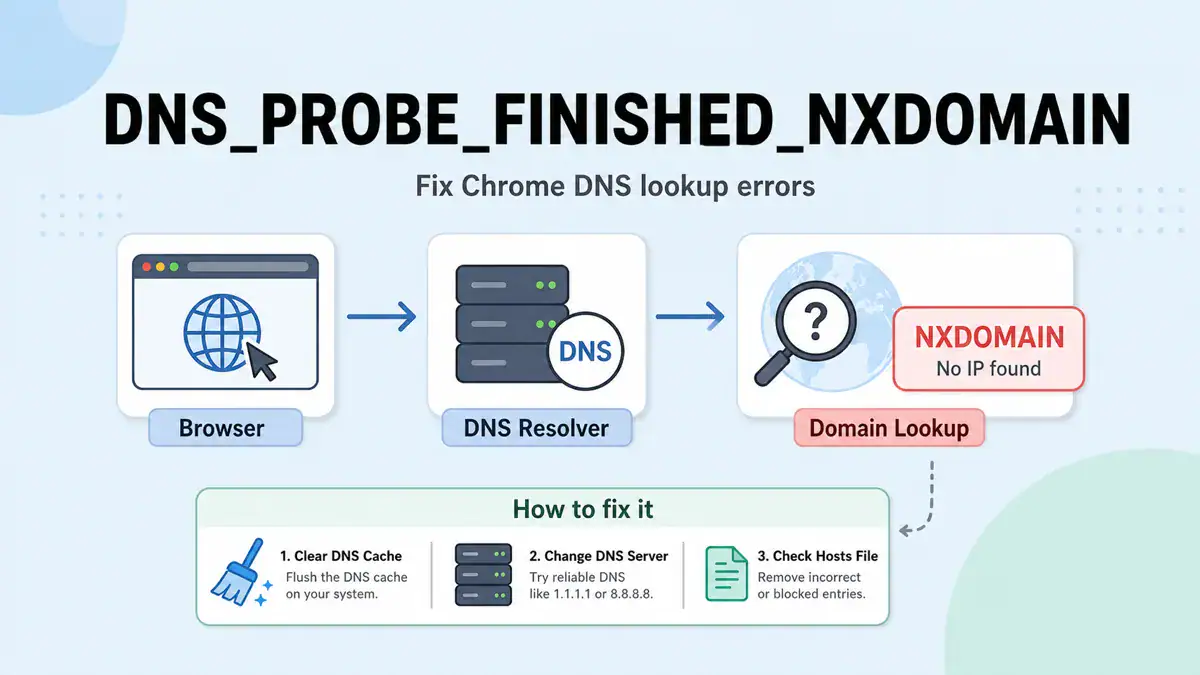
Updated June 2026: DNS_PROBE_FINISHED_NXDOMAIN usually means your browser asked DNS for a domain name and got back “that name does not exist” or no usable DNS answer. In Chrome, Edge, Brave, and other Chromium browsers, it often looks like “This site can’t be reached” and “server IP address could not be found”.
This guide shows how to fix DNS_PROBE_FINISHED_NXDOMAIN on Windows, macOS, Linux, Chrome, Edge, routers, VPNs, and Pi-hole. If the whole DNS path is failing, use my DNS Server Not Responding checklist. If the problem started after a DNS change, also read How to Flush DNS Cache. If you need a cleaner resolver to test against, compare options in Best Public DNS Providers for 2026.
Quick answer
To fix DNS_PROBE_FINISHED_NXDOMAIN, check the domain spelling first, then flush DNS cache, clear Chrome’s host cache, disable VPN or proxy DNS temporarily, check the hosts file, and test the domain against another resolver like 1.1.1.1 or 8.8.8.8. If only one domain fails everywhere, the site owner may need to fix the domain’s DNS records.
What DNS_PROBE_FINISHED_NXDOMAIN means
NXDOMAIN means “non-existent domain”. It is a DNS response code that tells the client the requested name does not exist in DNS. Chrome wraps that into DNS_PROBE_FINISHED_NXDOMAIN when the browser cannot turn the hostname into an IP address.
That does not always mean the domain is really gone. A local cache, typo, browser host cache, router DNS setting, VPN resolver, Pi-hole blocklist, split-DNS rule, or broken public DNS provider can make a valid domain look like it does not exist from your device.
| Where the failure is | What you see | Likely fix |
|---|---|---|
| Typo or bad URL | Only the mistyped domain fails | Retype the hostname and remove hidden spaces |
| Browser cache | Chrome fails but another browser works | Clear Chrome host cache and sockets |
| OS DNS cache | One device fails, others work | Flush DNS cache on that device |
| Router, Pi-hole, or ISP DNS | Every device on the network fails | Check local resolver and try a public DNS server |
| Authoritative DNS | Every resolver returns NXDOMAIN | The domain owner must fix DNS records or registration |
1. Check the domain name first
Start with the boring step because it saves time. Check for spelling mistakes, copied punctuation, spaces, smart quotes, bad subdomains, and old bookmarks. Try the bare domain and the www version:
example.com
www.example.com
If one works and the other fails, the domain may be missing a DNS record or redirect for that hostname. That is a site-side DNS configuration problem, not a Windows or Chrome problem.
2. Test another browser, device, and network
Before changing settings, find the boundary of the problem:
- If Chrome fails but Firefox works, focus on Chrome host cache and browser extensions.
- If one laptop fails but your phone works on the same Wi-Fi, focus on that laptop’s DNS cache, hosts file, VPN, or network adapter settings.
- If every device fails on the same Wi-Fi, focus on router DNS, Pi-hole, ISP DNS, or upstream resolver issues.
- If the phone works on mobile data but not Wi-Fi, the local network DNS path is the likely problem.
This step is the fastest way to avoid changing the wrong layer.
3. Flush DNS cache on your device
If the domain recently changed DNS records or your device has cached a bad answer, flush the local DNS cache.
Windows 10 and Windows 11
ipconfig /flushdnsIf the network adapter may also have stale DHCP or DNS settings, inspect the current configuration:
ipconfig /allmacOS
sudo dscacheutil -flushcache
sudo killall -HUP mDNSResponder
Linux with systemd-resolved
sudo resolvectl flush-caches
resolvectl status
Different Linux distributions use different resolver services. If your system uses dnsmasq, nscd, NetworkManager, or a VPN-managed resolver, check the service actually handling /etc/resolv.conf before restarting anything important.
4. Clear Chrome or Edge host cache
Chromium browsers can cache host lookups separately from the operating system. If flushing Windows, macOS, or Linux does not fix Chrome, clear the browser layer too.
- Open
chrome://net-internals/#dns. - Click Clear host cache.
- Open
chrome://net-internals/#sockets. - Click Close idle sockets and Flush socket pools.
- Close and reopen the affected tab.
For Microsoft Edge, use edge://net-internals/#dns and edge://net-internals/#sockets. Brave and other Chromium browsers use similar internal pages.
5. Change DNS servers for a clean test
A quick resolver switch can tell you whether your current DNS provider is the issue. You do not have to keep the new provider forever. Use it as a test.
| Provider | IPv4 DNS servers | Good for |
|---|---|---|
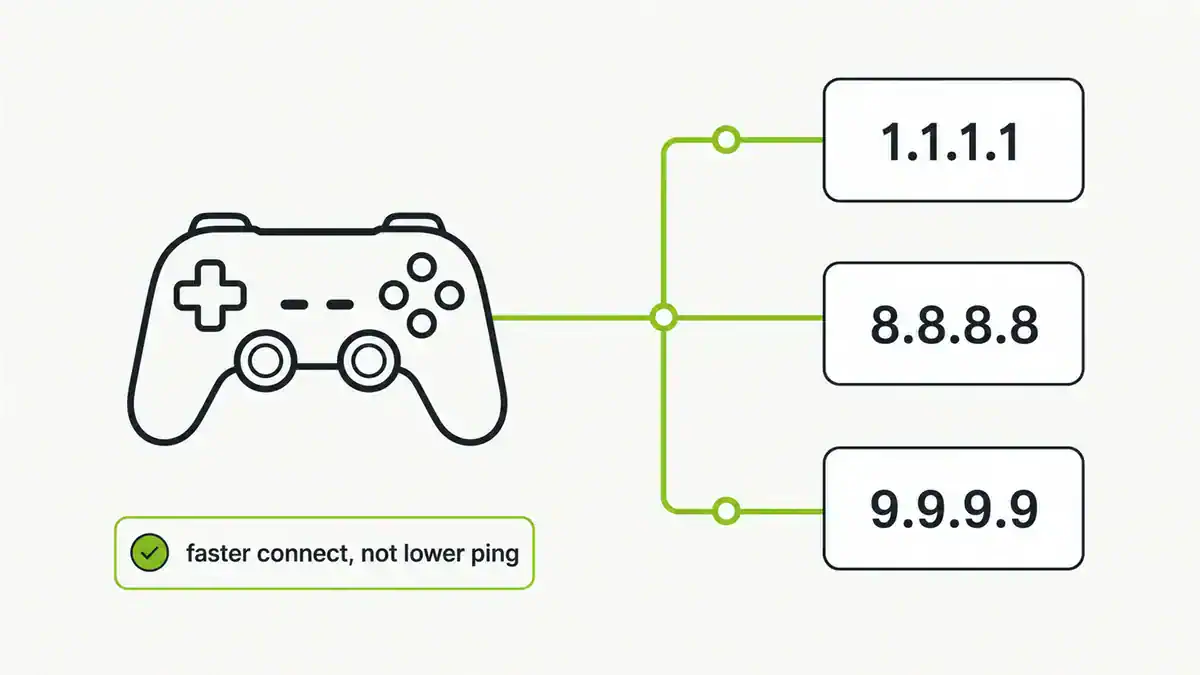
| Cloudflare | 1.1.1.1, 1.0.0.1 | Fast general testing |
| Google Public DNS | 8.8.8.8, 8.8.4.4 | Broad baseline comparison |
| Quad9 | 9.9.9.9, 149.112.112.112 | Security-filtered DNS testing |
If changing DNS fixes the error, your previous resolver, router, ISP DNS, VPN DNS, or Pi-hole path was the problem. For a deeper comparison, use my public DNS provider guide.
6. Check the hosts file
The hosts file can override DNS. If it contains a bad entry, the browser may never ask your DNS server for the real answer.
| System | Hosts file path |
|---|---|
| Windows | C:\Windows\System32\drivers\etc\hosts |
| macOS | /etc/hosts |
| Linux | /etc/hosts |
Look for the failing domain. If you see an old IP address, a local test entry, or a block entry like 0.0.0.0 example.com, comment it out, save the file, flush DNS, and retry.
7. Disable VPN, proxy, secure DNS, or private DNS temporarily
VPN clients and security tools can install their own DNS rules. That is useful for split tunnelling and corporate domains, but it can also cause a normal public domain to return NXDOMAIN from one network path and work from another.
- Disconnect VPN and test again.
- Disable browser Secure DNS temporarily.
- Turn off proxy settings for a test.
- On mobile, disable Private DNS or iCloud Private Relay temporarily.
- If the issue only happens on work VPN, ask whether the domain is intentionally blocked or whether split DNS is misconfigured.
If the domain works after VPN is disconnected, capture the before and after resolver settings. It is often a split-DNS or policy issue, not a broken website.
8. Check Pi-hole, ad blockers, and local DNS filters
Pi-hole and DNS filtering tools can intentionally return blocked answers. They are not usually meant to return NXDOMAIN for everything, but a broad blocklist or local DNS rule can still break a domain you need.
- Check the Pi-hole query log for the failing domain.
- Temporarily disable blocking for a short test window.
- Whitelist only the exact domain if it is a false positive.
- Remove over-aggressive blocklists instead of stacking every list you can find.
If you run Pi-hole, my 2026 Pi-hole blocklists guide explains how to pick lists without breaking normal browsing.
9. Use nslookup or dig to prove where NXDOMAIN comes from
When the easy fixes do not work, compare your default resolver against known public resolvers.
nslookup example.com
nslookup example.com 1.1.1.1
nslookup example.com 8.8.8.8
On macOS or Linux, dig makes the status easier to see:
dig example.com
dig @1.1.1.1 example.com
dig @8.8.8.8 example.com| Test result | Meaning | Next step |
|---|---|---|
| Default resolver returns NXDOMAIN, public resolver works | Local, ISP, VPN, or filtered DNS issue | Fix resolver settings or change DNS provider |
| All resolvers return NXDOMAIN | The domain probably has no valid DNS answer | Check the domain registration and authoritative DNS |
| Only one subdomain fails | Missing record for that hostname | Fix the A, AAAA, CNAME, or DNS zone record |
| DNS resolves but the site fails | Not an NXDOMAIN problem anymore | Check routing, firewall, web server, TLS, or CDN |
When the website owner has to fix it
If every resolver returns NXDOMAIN for the same hostname, the problem is likely outside your device. The domain may be expired, the DNS zone may be deleted, the www record may be missing, or a CNAME target may no longer exist.
For site owners, check:
- Domain registration is active and not expired.
- Nameservers at the registrar match the DNS host you are editing.
- The root domain has an A, AAAA, ALIAS, or ANAME record as required by your host.
- The
wwwhostname has a CNAME or redirect target. - Recent DNS changes have had enough time to propagate based on TTL.
FAQ
Is DNS_PROBE_FINISHED_NXDOMAIN a Chrome problem?
Sometimes, but not always. Chrome is reporting the error, but the cause can be the browser cache, operating system DNS cache, router, VPN, Pi-hole, public DNS resolver, or the domain’s authoritative DNS records.
Does flushing DNS fix NXDOMAIN?
Flushing DNS can fix NXDOMAIN when your device cached a stale or bad DNS answer. It will not fix a mistyped domain, missing DNS record, expired domain, broken nameserver, or intentional DNS block.
Why does one device show NXDOMAIN but another works?
The failing device may have a stale DNS cache, custom DNS server, bad hosts file entry, VPN resolver, browser Secure DNS setting, or security tool changing DNS responses.
Why does NXDOMAIN happen after changing DNS records?
DNS changes can take time to be visible everywhere because resolvers cache answers until the TTL expires. If the zone was misconfigured during the change, some resolvers may cache a bad or missing answer for a while.
Which command fixes DNS_PROBE_FINISHED_NXDOMAIN on Windows?
Start with ipconfig /flushdns, then reopen Chrome. If it still fails, clear Chrome’s host cache, check ipconfig /all, try another DNS provider, and inspect the hosts file.
Sources checked
Get notified whenever I post something new. No spam, and it helps a lot!


Leave a Reply