There’s often a need to decrypt the ISAKAMP and ESP traffic of your IKEv2 tunnels – to see what client traffic is being sent from the vendor, to correlate ISAKMP packets are matching what we’d expect, or for deeper troubleshooting sessions to further investigate tunnel issues. Strongswan has made it quite easy to decrypt these exchanges and I’ll show you how to do this in this post.
Decrypting IKEv2 ISAKMP packets requires the following things, and I’ll guide you through getting all of these values:
Initiator SPI
Responder SPI
SK_ei
SK_er
Encryption Algorithim
SK_ai
SK_ar
Integrity Algorithim
Decyrpting ESP packets require the following things, and this guide will also show you how to extract that data out of Strongswan and the relevant other daemons (ip xfrm)
SPIs
Encryption
Encryption Key
Authentication
Authentication Key
Pre-requisites
Strongswan installed and configured with swanctl – if you don’t have this, you can learn here: Configuring Strongswan 5.9.8 with swanctl on Raspberry Pi OS
Ability to take a packet capture and inspect in Wireshark
Modifying strongswan.conf
By default, strongswan logging doesn’t include the keys that we need – so we’ll need to increase the logging for IKE packets. In your strongswan.conf file, you should have a section that mentions the default logging for the daemon. We want to add “ike = 4” into the logging section of strongswan.conf, which will turn on sensitive material logs for any IKE packets:
charon {
    load_modular = yes
    plugins {
        include strongswan.d/charon/*.conf
    }
    filelog {
        stdout {
            path = /var/log/strongswan.log
            time_format = %b %e %T
            ike_name = yes
            append = yes
            default = 2
            ike = 4
            flush_line = yes
        }
    }
}
If you don’t have any of this, or aren’t sure how to configure strongswan.conf, you can have a look at the example at this blog post Forming an IKEv2 tunnel with a Cisco Meraki MX using Strongswan – swanctl
Once we add that into the config file, make sure to reload swanctl:
swanctl -q
swanctl -r
Gathering ISAKMP debug keys
We want to have a packet capture on the WAN interface (of either peer) at the time of the tunnel forming, and during some bidirectional traffic being sent, so that we can then use the decryption keys in Wireshark.
First, make sure no tunnel is up currently, this will make our logging much clearer in the packet capture:
swanctl -t -i Phase1-Meraki # replace Phase1-Meraki with your IKE_SA config name of your peer
Now, let’s start a running packet capture – here’s an example command you can run to take a packet capture on your lab device using this syntax, which will save it to tunnel.pcap in the current directory:
tcpdump -nei eth0 host x.x.x.x > tunnel.pcap # where x.x.x.x is the public IP of the remote peerOnce we have started the packet capture, form the tunnel (changing the tunnel names with the definitions you have configured):
swanctl -i -i Phase1-Meraki -c Phase2-Meraki #replace Phase1-Meraki and Phase2-Meraki with the relevant IKE_SA and CHILD_SA name(s)Now, we’ll want to extract the Sk_ai, Sk_ar, Sk_ei, and SK_er values from our output log (/var/log/strongswan.log in my case, as defined in my strongwan.conf file, but otherwise /var/log/syslog is one of the default locations, depending on distro):
root@raspberrypi:/home/burstbytes# cat /var/log/strongswan.log | grep -a -A2 -E "Sk_ei|Sk_er|Sk_ar|Sk_ai"
Jun 11 10:02:29 11[IKE] <2> Sk_ai secret => 20 bytes @ 0x5d309c
Jun 11 10:02:29 11[IKE] <2> 0: 32 6A 74 C4 35 B8 C4 61 F8 5B 12 89 4B 2B C7 0C 2jt.5..a.[..K+..
Jun 11 10:02:29 11[IKE] <2> 16: 58 B3 45 F1 X.E.
Jun 11 10:02:29 11[IKE] <2> Sk_ar secret => 20 bytes @ 0x5d30b0
Jun 11 10:02:29 11[IKE] <2> 0: E6 5F 0D 0C 0B 72 A9 69 03 56 F9 C0 F2 88 97 0B ._…r.i.V……
Jun 11 10:02:29 11[IKE] <2> 16: 34 0B FF 04 4…
Jun 11 10:02:29 11[IKE] <2> Sk_ei secret => 32 bytes @ 0x5d30c4
Jun 11 10:02:29 11[IKE] <2> 0: 1A C4 53 63 48 28 F6 8A 19 BB FD F3 17 4E 86 7B ..ScH(…….N.{
Jun 11 10:02:29 11[IKE] <2> 16: E6 AE 0E 0C 1E A3 68 92 B9 45 4C 91 5E 4A 80 A5 ……h..EL.^J..
Jun 11 10:02:29 11[IKE] <2> Sk_er secret => 32 bytes @ 0x5d30e4
Jun 11 10:02:29 11[IKE] <2> 0: 0F 14 0B 0C 4F 6F 53 0C 7E D2 A8 BA 59 29 76 07 ….OoS.~…Y)v.
Jun 11 10:02:29 11[IKE] <2> 16: 11 99 C8 EF AB A0 2C B7 A9 33 97 02 F1 B7 67 39 ……,..3….g9
We’ll need to format the secrets appropriately for the syntax we require in Wireshark – this involves copy pasting just the relevant part of the key, and putting all of the hexadecimal together – for example:
Jun 11 10:02:29 11[IKE] <2> Sk_ai secret => 20 bytes @ 0x5d309c
Jun 11 10:02:29 11[IKE] <2> 0: 32 6A 74 C4 35 B8 C4 61 F8 5B 12 89 4B 2B C7 0C 2jt.5..a.[..K+..
Jun 11 10:02:29 11[IKE] <2> 16: 58 B3 45 F1
will become this:
326A74C435B8C461F85B12894B2BC70C258B345FGrab the outputs for all of these and save them in a notepad – in my case, it was this:
Sk_ei
1AC453634828F68A19BBFDF3174E867BE6AE0E0C1EA36892B9454C915E4A80A5

Sk_er
0F140B0C4F6F530C7ED2A8BA592976071199C8EFABA02CB7A9339702F1B76739

Sk_ai
326A74C435B8C461F85B12894B2BC70C258B345F

Sk_ar
E65F0D0C0B72A9690356F9C0F288970B340BFF04
You could also run a bash script that could scrape and format the keys for you. An example bash script that could do it – save as keys.sh:
#!/bin/bash

LOG_FILE="/var/log/strongswan.log"
TMP_LOG=$(mktemp)
KEYS=("Sk_ei" "Sk_er" "Sk_ai" "Sk_ar")

strings "$LOG_FILE" > "$TMP_LOG"

for key in "${KEYS[@]}"; do
    lineno=$(grep -n "$key secret" "$TMP_LOG" | tail -n1 | cut -d: -f1)

    if [[ -n "$lineno" ]]; then
        line=$(sed -n "${lineno}p" "$TMP_LOG")
        timestamp=$(echo "$line" | awk '{print $1, $2, $3}')

        byte_count=$(echo "$line" | grep -oP '\d+(?= bytes)')
        total_hex_chars=$((byte_count * 2))

        l1=$(sed -n "$((lineno + 1))p" "$TMP_LOG")
        l2=$(sed -n "$((lineno + 2))p" "$TMP_LOG")

        hex1=$(echo "$l1" | sed -E 's/^.*0:\s*([0-9A-Fa-f ]+).*/\1/' | tr -d ' ')
        hex2=$(echo "$l2" | sed -E 's/^.*16:\s*([0-9A-Fa-f ]+).*/\1/' | tr -d ' ')
        combined="${hex1}${hex2}"
        clean_hex=$(echo "${combined:0:$total_hex_chars}" | tr 'a-f' 'A-F')

        echo "$key - $timestamp"
        echo "$clean_hex"
        echo ""
    fi
done

rm "$TMP_LOG"
root@raspberrypi:/home/burstbytes# bash keys.sh
Sk_ei - Jun 11 10:02:29
1AC453634828F68A19BBFDF3174E867BE6AE0E0C1EA36892B9454C915E4A80A5
Sk_er - Jun 11 10:02:29
0F140B0C4F6F530C7ED2A8BA592976071199C8EFABA02CB7A9339702F1B76739
Sk_ai - Jun 11 10:02:29
326A74C435B8C461F85B12894B2BC70C258B345F
Sk_ar - Jun 11 10:02:29
E65F0D0C0B72A9690356F9C0F288970B340BFF04
root@raspberrypi:/home/burstbytes#Then, run swanctl -l and gather the Initiator and Responder SPI values (removing the _i and _r, they just dictate the initiator and responder, and the * indicates who we are).
root@raspberrypi:/home/burstbytes# swanctl -l
Phase1-Meraki: #2, ESTABLISHED, IKEv2, c367c45f58bbbcb0_i 44fcc6c55f147667_r*
Gathering ESP debug keys
Now that we’ve gathered the ISAKMP logs, make sure your packet capture is still running and first send through traffic over the tunnel – such as a ping.
Then, we’ll want to gather the keys from ip xfrm state:
root@raspberrypi:/home/burstbytes# ip xfrm state
src 192.168.10.11 dst 192.168.60.5
proto esp spi 0xce5dd77e reqid 1 mode tunnel
replay-window 0 flag af-unspec
auth-trunc hmac(sha1) 0x50f3a3ad794e5f84cc18be08788b4d2ffc295cfd 96
enc cbc(aes) 0x091373ebd1e7b54967f8c241b5509d3d5cba550e3b0507fe1fc408502408e229
lastused 2025-06-11 10:03:02
anti-replay context: seq 0x0, oseq 0x6, bitmap 0x00000000
src 192.168.60.5 dst 192.168.10.11
proto esp spi 0xc2a834bb reqid 1 mode tunnel
replay-window 32 flag af-unspec
auth-trunc hmac(sha1) 0xe0652f3c6bdd3aa5f3338502adbdeaede73e96e1 96
enc cbc(aes) 0x79f84acc76afe3c34b4eb0b7af4d0b8ce3032631b9a9555a39b74e0b9c21d7fb
lastused 2025-06-11 10:03:02
anti-replay context: seq 0xd, oseq 0x0, bitmap 0x00001c07
root@raspberrypi:/home/burstbytes#
The keys we’ll need are the auth and enc keys (and you can note down the SPIs too):
src 192.168.10.11 dst 192.168.60.5
0xce5dd77e
(sha1) 0x50f3a3ad794e5f84cc18be08788b4d2ffc295cfd
cbc(aes) 0x091373ebd1e7b54967f8c241b5509d3d5cba550e3b0507fe1fc408502408e229

src 192.168.60.5 dst 192.168.10.11
0xc2a834bb
(sha1) 0xe0652f3c6bdd3aa5f3338502adbdeaede73e96e1
cbc(aes) 0x79f84acc76afe3c34b4eb0b7af4d0b8ce3032631b9a9555a39b74e0b9c21d7fb
Decrypting the traffic in Wireshark
Now that we have all of these values, it’s time to end the packet capture, and open it up in Wireshark. Right click an ISAKMP packet, go to Protocol Preferences –> Internet Security Association and Key Management Protocol –> IKEv2 Decryption Table.
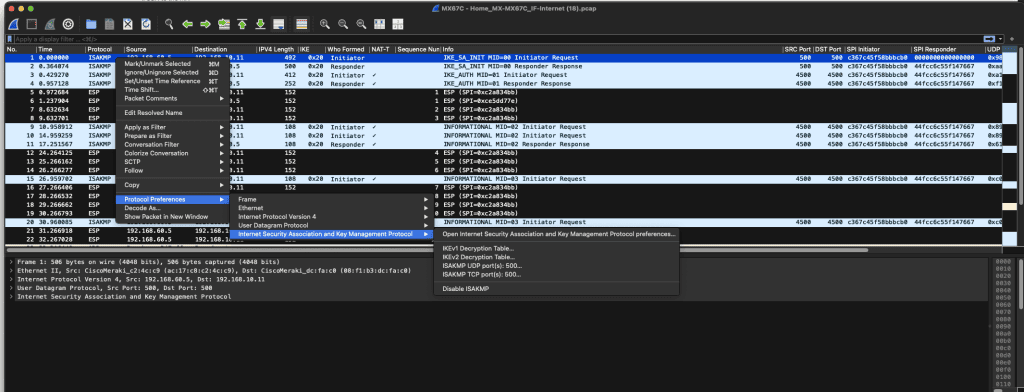
Fill in the Initiator and Responder SPIs that we gathered from swanctl -l:
c367c45f58bbbcb0
44fcc6c55f147667
Fill in all four SK values that we gathered above, and add the relevant Encryption Algorithim and Integrity Algorithim (in my case, AES256 and SHA1), and click OK.

Now, you can click a encrypted packet in Wireshark, and the “Encrypted and Authenticated” payload will be viewable, and we can see all the data sent:
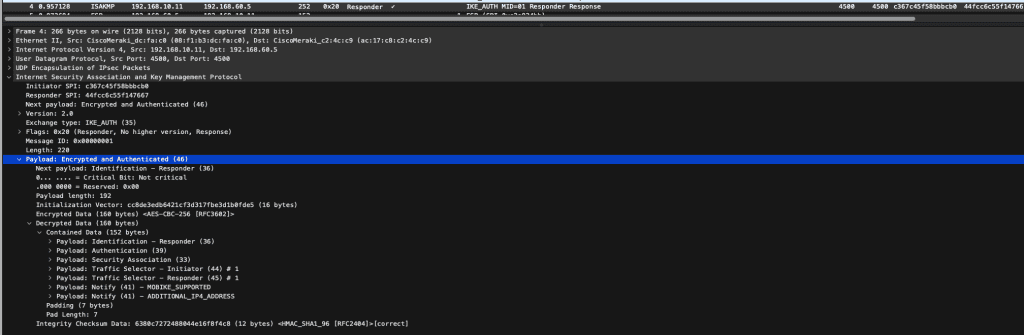
Now, lets decrypt the ESP traffic. For ESP traffic, we need to fill in both initiator and responder fields to decyrpt both sides.
Right click an ESP packet, go to Protocol Preferences –> Encapsulating Security Payload –> ESP SAs.

Fill in all of the details asked for with what we gathered above in ip xfrm state. Make sure to match the correct source/dst IPs and SPIs or it won’t work correctly. Click OK.
The packets will now be decrypted, and show both the encrypted ESP payload and the correlating ICMP decrypted payload underneath.

Summary
Through some editing of strongswan.conf’s base config, timed packet captures and log gathering, we were able to decrypt both the ISAKMP and ESP packets of a Strongswan IPSEC tunnel. The remote peer doesn’t matter – in this case, it was to a Cisco Meraki MX, but as long as you gather the captures and correct keys, you’ll be able to decrypt both ISAKMP and ESP traffic. This can be incredibly beneficial when troubleshooting tunnel formation issues, or ensuring that the ESP packet is not being corrupted over the internet.
Get notified whenever I post something new. No spam, and it helps a lot!


Leave a Reply