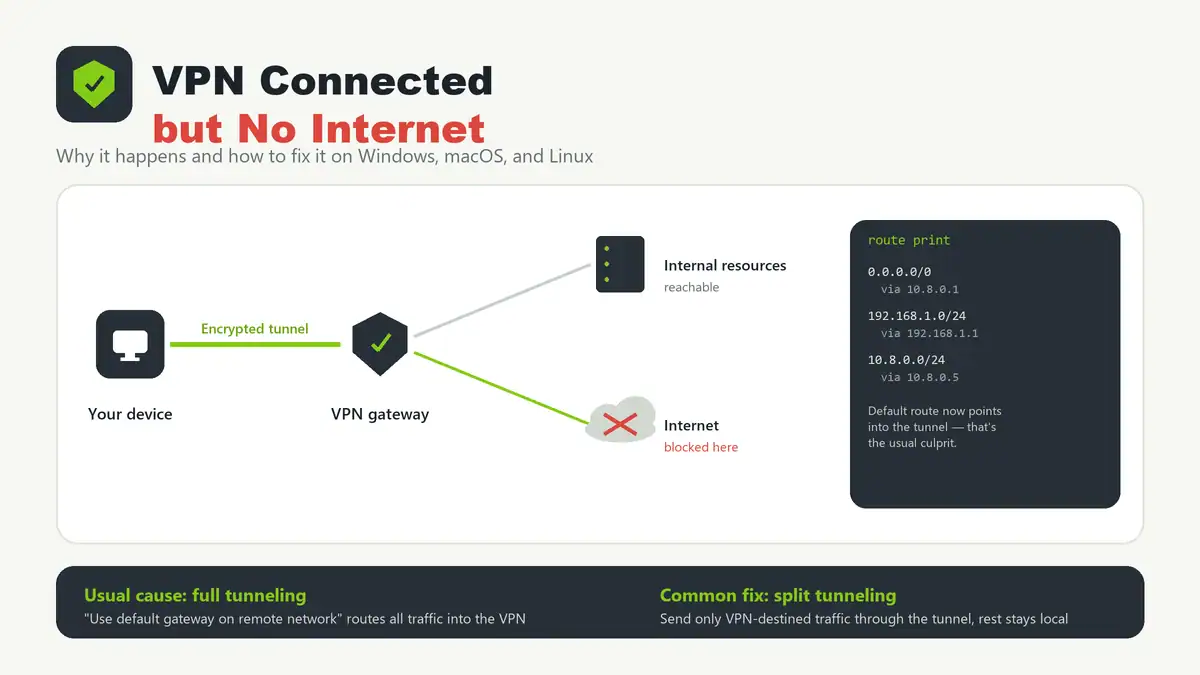
Updated June 2026. “VPN connected, but no internet” almost always means one thing: your default route got pointed into the VPN tunnel, and either the tunnel does not forward general internet traffic or the DNS server it handed you cannot resolve public names. This is different from a tunnel that will not establish at all — here the connection succeeds, the lock icon shows connected, and browsing still fails.
Quick answer
The most common cause is full tunneling: the VPN client sets itself as the default gateway (0.0.0.0/0), so every packet, including ordinary web traffic, tries to leave through a remote network that may only route to internal corporate resources and does not forward to the open internet. The fix for most people is split tunneling — route only the remote network’s traffic through the VPN and let everything else use your normal connection. If split tunneling is not available or not the issue, check DNS next: a VPN-assigned DNS server that cannot resolve public hostnames will look exactly like “no internet” even though routing is fine.
Why this happens
When a VPN client connects, it usually adds (or replaces) your default route so traffic prefers the tunnel. That is correct behavior for a corporate VPN that intentionally wants all your traffic inspected or filtered. It becomes a problem when:
- The VPN server only routes to internal resources and silently drops or blackholes general internet traffic.
- The VPN hands out a DNS server that only resolves internal names, so public sites fail to resolve even though the route would otherwise work.
- A firewall or security suite on the host blocks traffic on the new VPN adapter.
- The VPN protocol or server has a fault, so the tunnel reports “connected” without actually passing traffic — the IPsec equivalent of this is covered in VPN tunnel up but no traffic.
Fixes compared
| Cause | How to confirm | Fix |
|---|---|---|
| Full tunneling, server has no internet egress | route print / ip route shows 0.0.0.0/0 via the VPN adapter | Enable split tunneling, or disable “use default gateway on remote network” |
| VPN DNS cannot resolve public names | Pings to a raw IP work, but hostnames fail to resolve | Use a public DNS resolver for non-VPN traffic, or fix split DNS |
| Local firewall blocking the VPN adapter | Disabling the firewall/security suite temporarily restores access | Allow the VPN adapter and process through the firewall |
| Tunnel reports connected but is not forwarding | Handshake succeeds but no traffic crosses (see IPsec child SA checks) | Check server-side routing and NAT rules, not the client |
| Stale network state after reconnect | Restarting the device or adapter fixes it temporarily | Flush DNS, renew the IP, restart the VPN adapter |
Step-by-step: diagnose the routing
Start by checking what your default route actually is once the VPN is connected.
Windows
route print
ipconfig /all
Get-NetRoute -DestinationPrefix 0.0.0.0/0
If 0.0.0.0/0 points to the VPN adapter and the server does not forward general traffic, enable split tunneling. The GUI option is under the VPN adapter’s TCP/IPv4 properties — advanced settings — uncheck “Use default gateway on remote network.” The same change via PowerShell:
Set-VpnConnection -Name "YourVPN" -SplitTunneling $truemacOS
netstat -nr | grep default
scutil --dns
Most third-party VPN apps on macOS expose a split-tunneling toggle in their own settings rather than the system network pane. Built-in IKEv2/L2TP profiles configured through Settings > VPN typically tunnel everything unless the profile explicitly defines routes.
Linux
ip route show
ip route get 8.8.8.8
resolvectl status
For WireGuard, check AllowedIPs in the peer config — 0.0.0.0/0 means full tunneling, while a narrower range like 10.8.0.0/24 means only that subnet routes through the tunnel.
Step-by-step: rule out DNS
- Try to reach a known IP directly, for example
ping 1.1.1.1. If that works butping google.comfails, the routing is fine and DNS is the problem. - Check which DNS server the VPN assigned with
ipconfig /all(Windows) orresolvectl status(Linux). - If the assigned DNS server only knows internal names, either request split DNS from the VPN admin or manually set a public resolver for everything outside the VPN’s domain.
- Flush the DNS cache after changing resolvers so stale lookups do not linger.
Troubleshooting checklist
- Check the route table first. A wrong default gateway explains most cases instantly.
- Separate routing from DNS. Ping an IP and a hostname to know which layer is broken.
- Disable security software temporarily. If that restores access, the issue is a local firewall rule, not the VPN itself.
- Confirm the VPN server’s intent. Some corporate VPNs are deliberately configured to block general internet access; that is not a fault to fix on the client.
- Restart the adapter, not just the app. A stuck virtual adapter can hold a bad route after a reconnect.
Common mistakes
- Assuming “connected” means “forwarding traffic.” A successful handshake only proves the tunnel exists, not that routing or DNS behind it works.
- Turning off split tunneling for everything. Full tunneling is sometimes required by policy; check before changing it on a managed device.
- Fixing DNS and routing at the same time. Change one variable, test, then move to the next so you know which fix actually worked.
- Ignoring the kill switch. Some VPN apps block all traffic if the tunnel drops momentarily, which looks identical to a routing problem.
FAQ
Why does my VPN say connected but I have no internet?
The connection (handshake) succeeded, but either your traffic is being routed somewhere that does not reach the internet, or the DNS server you were assigned cannot resolve public hostnames. Check your routing table and try pinging a raw IP versus a hostname to tell the two apart.
What is split tunneling and should I enable it?
Split tunneling sends only traffic destined for the VPN’s network through the tunnel, while everything else uses your normal internet connection. It is the right fix when the VPN server does not forward general internet traffic. Do not enable it on a managed corporate device without checking policy first.
How do I check my routing table?
Use route print or Get-NetRoute on Windows, netstat -nr on macOS, and ip route show on Linux. Look at where the 0.0.0.0/0 default route points after connecting the VPN.
Could my antivirus or firewall be causing this?
Yes. Security software can block the VPN’s virtual adapter or intercept its traffic. Temporarily disabling it (on a network you trust) is a fast way to confirm whether it is the cause.
Does this affect WireGuard and Tailscale too?
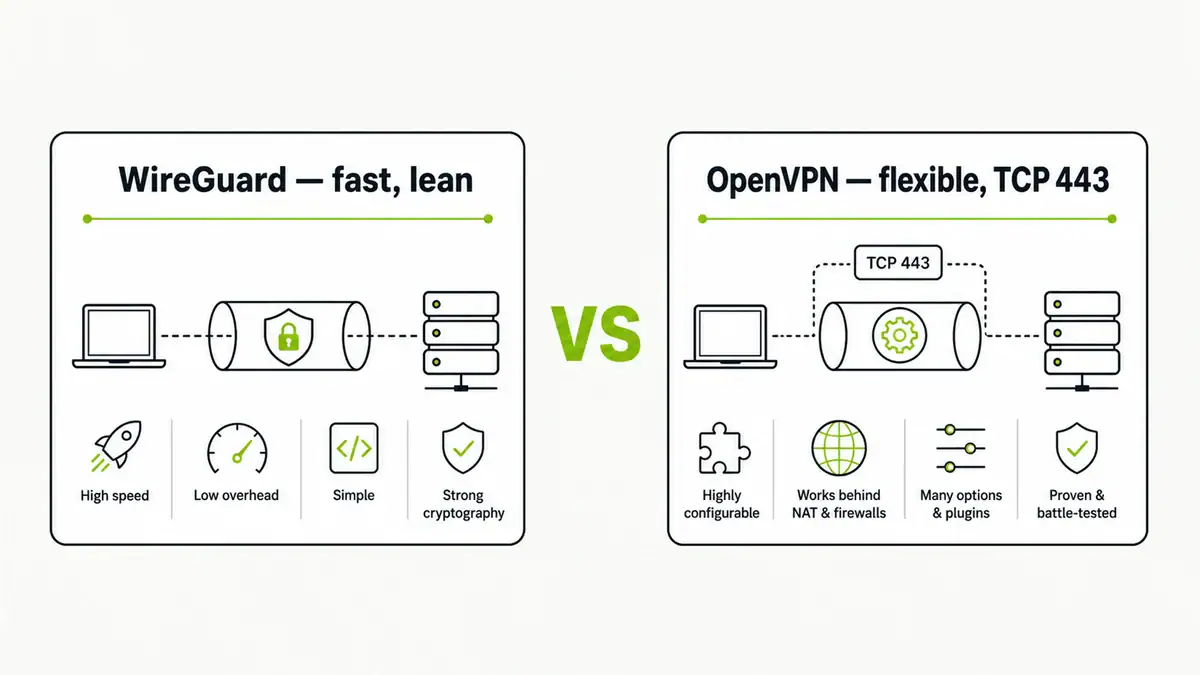
Yes, the same logic applies. In WireGuard, an AllowedIPs of 0.0.0.0/0 means full tunneling; narrow it to specific subnets for split tunneling. See Tailscale vs WireGuard for how each handles routing and NAT traversal differently.
Sources checked
- Microsoft — Set-VpnConnection (split tunneling)
- Microsoft — Get-NetRoute documentation
- WireGuard official site (AllowedIPs behavior)
- Apple Support — network troubleshooting
Final take
“Connected but no internet” is a routing problem dressed up as a connection problem. Check route print / ip route first, confirm whether DNS or the default gateway is the actual culprit, and only then decide between split tunneling, a DNS fix, or a firewall exception. If you are setting up a new home VPN and want to avoid this class of issue entirely, a mesh VPN with sane defaults is worth a look — see Tailscale vs WireGuard for how routing and NAT traversal are handled out of the box.
Get notified whenever I post something new. No spam, and it helps a lot!


Leave a Reply