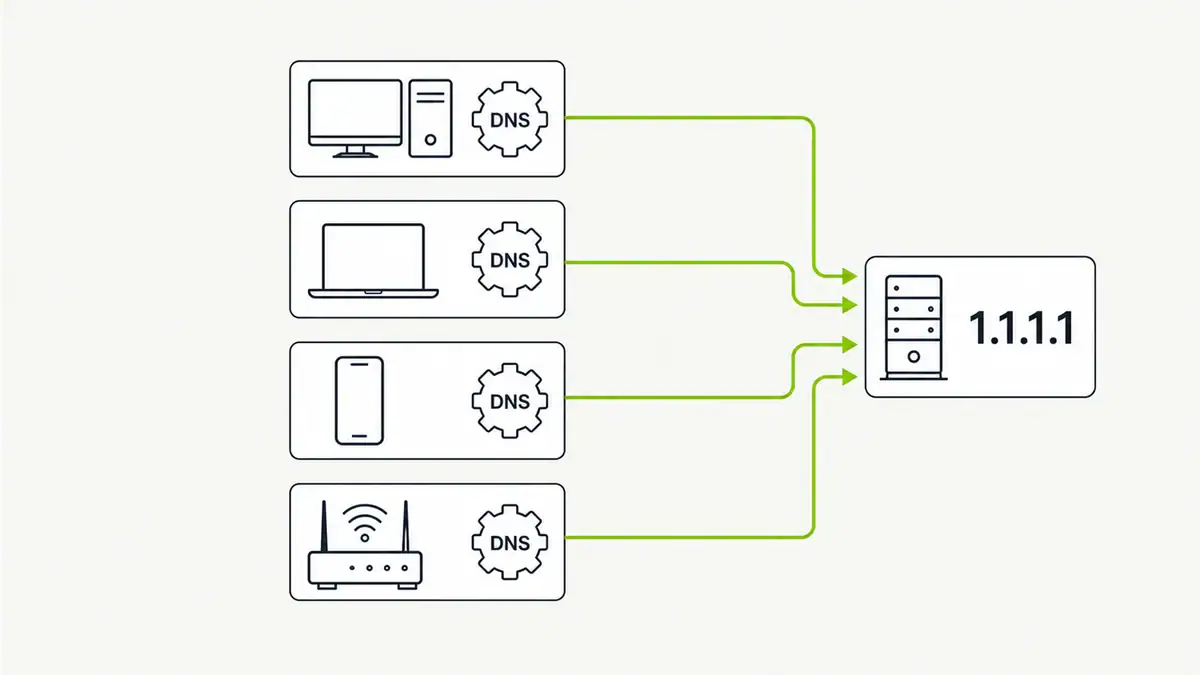
Updated June 2026. Changing your DNS server can make browsing faster, add privacy, or unblock filtering — and it takes two minutes. You can change it on one device or set it once on your router to cover the whole network. Here is how, on every platform, plus which resolver to pick.
Quick answer
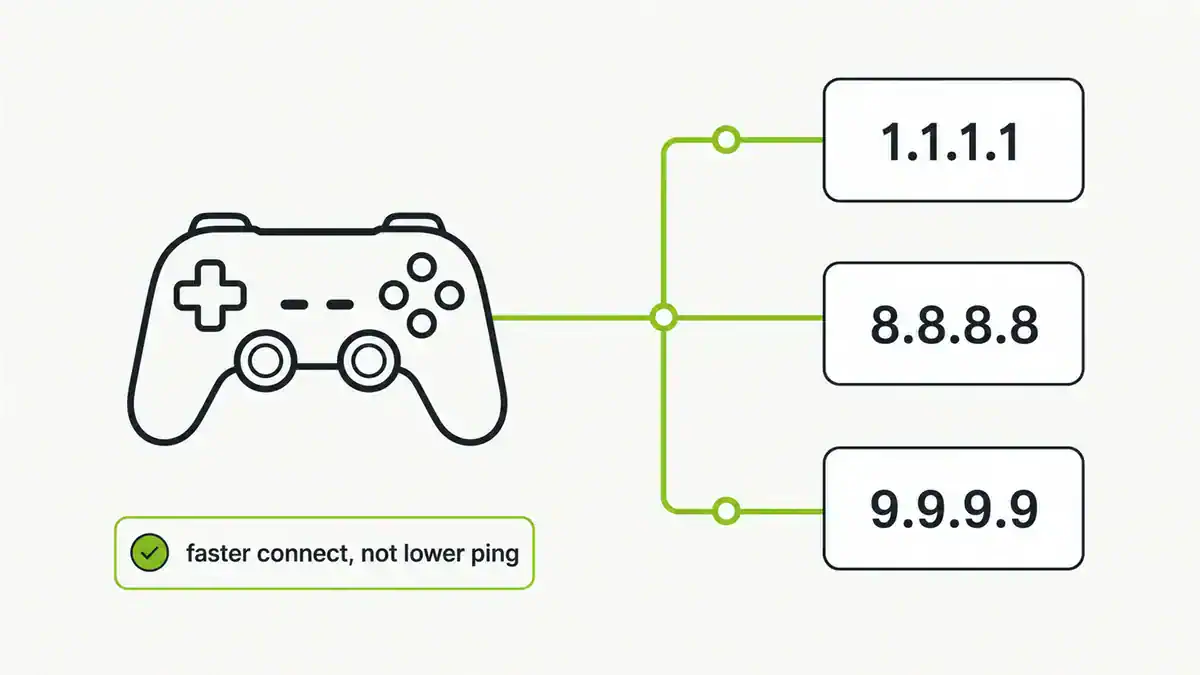
Set your DNS to a fast public resolver such as Cloudflare (1.1.1.1 / 1.0.0.1), Google (8.8.8.8 / 8.8.4.4), or Quad9 (9.9.9.9). Change it per device in network settings, or once on your router to apply it to everything. After changing, flush your DNS cache and test. For which provider suits you, see the best public DNS providers.
Where to change DNS
| Device | Where |
|---|---|
| Windows 11 | Settings > Network & internet > adapter > DNS server assignment > Edit |
| macOS | System Settings > Network > details > DNS |
| iPhone / iPad | Settings > Wi-Fi > (i) > Configure DNS > Manual |
| Android | Settings > Network > Private DNS (or per Wi-Fi) |
| Router | Admin page > WAN / DHCP / DNS settings (covers all devices) |
Windows 11
- Open Settings > Network & internet and select your Wi-Fi or Ethernet.
- Next to DNS server assignment, click Edit and choose Manual.
- Turn on IPv4 and enter your preferred and alternate DNS (e.g. 1.1.1.1 and 1.0.0.1).
- Optionally set DNS over HTTPS to On for encryption, then save.
macOS, iPhone, and Android
On macOS, open System Settings > Network, pick your connection, click Details > DNS, and add the servers with the plus button. On iPhone, tap the (i) next to your Wi-Fi, choose Configure DNS > Manual, and add servers. On Android, use Private DNS for an encrypted hostname (e.g. dns.google) or set DNS per Wi-Fi network.
On your router (whole network)
Setting DNS on the router applies it to every device automatically. Log in to your router admin page, find the DNS fields (often under WAN or DHCP), enter your chosen servers, and save. This is the most efficient option and pairs well with a Pi-hole if you want network-wide ad blocking.
Test and encrypt
Confirm the change with nslookup or dig, and flush your DNS cache so old lookups do not linger. To stop your ISP seeing your queries, also turn on DNS over HTTPS.
FAQ
What DNS server should I use?
Cloudflare 1.1.1.1 for speed and privacy, Quad9 9.9.9.9 for malware blocking, or Google 8.8.8.8 for reliability. Pick a fast, reputable provider near you.
Is it better to change DNS on the router or each device?
The router is more efficient because it covers every device at once. Change it per device when you only want the setting on specific machines.
Does changing DNS speed up the internet?
It can speed up name resolution and page-load starts, especially if your ISP DNS is slow, but it does not increase your bandwidth. The effect is fastest first-connections, not higher speeds.
Will changing DNS hide my browsing?
No. It changes who resolves your lookups. To hide the lookups from your ISP, enable DNS over HTTPS. To hide your traffic and IP, use a VPN.
Do I need to restart after changing DNS?
Usually not, but flush your DNS cache so cached entries do not override the new server. Reconnecting the network also helps it take effect.
Sources checked
Final take
Changing DNS is a quick win for speed, privacy, or filtering. Set it on your router to cover the whole home, pick a resolver from our provider guide, and add encryption if privacy matters. If resolution breaks afterwards, work through DNS server not responding.
Get notified whenever I post something new. No spam, and it helps a lot!


Leave a Reply