The browser says “DNS server not responding”. Everything looks connected. Wi-Fi is up, the cable is plugged in, and maybe other apps even seem fine for a moment.
This error usually means your device could not get a usable answer from the DNS resolver it is configured to use. That resolver might be your router, your ISP, a VPN client, Pi-hole, a corporate DNS server, or a public resolver like Cloudflare, Google, Quad9, or OpenDNS.
The important bit: DNS failing does not always mean the internet is down. It means name resolution is broken somewhere between your device and the resolver.
Quick answer
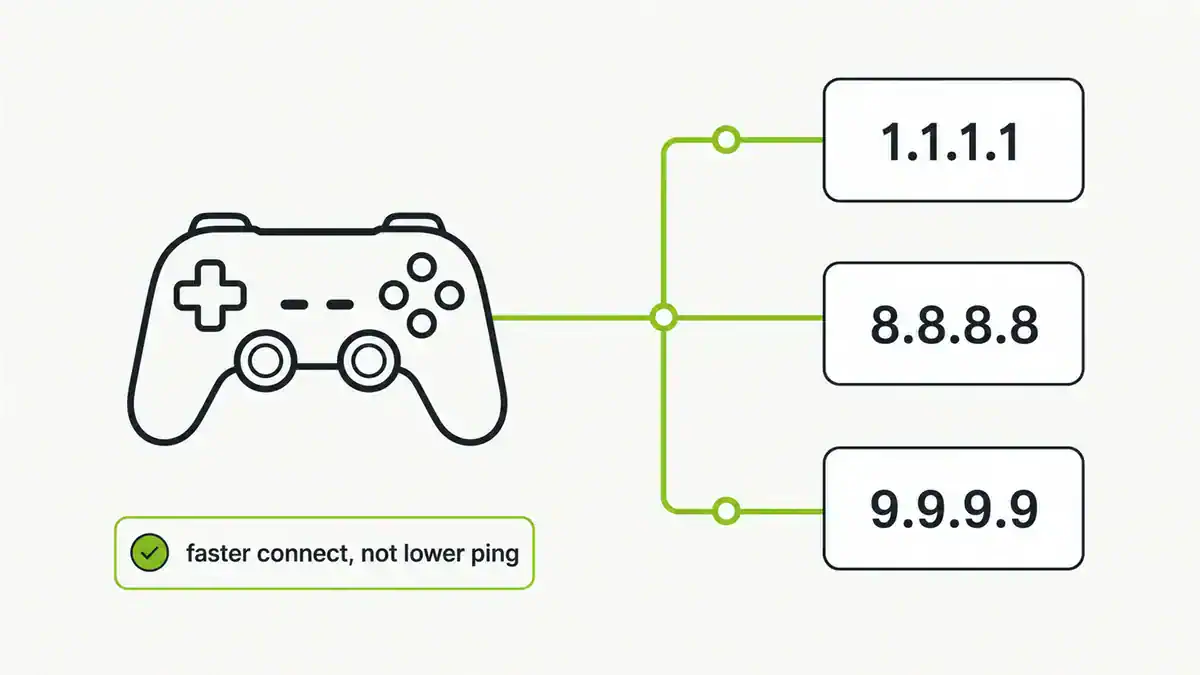
To fix “DNS server not responding”, restart the browser and network connection, confirm the internet link works by pinging an IP address, flush the local DNS cache, renew DHCP, check which DNS server your device is using, then temporarily switch to a known public resolver such as 1.1.1.1, 8.8.8.8, or 9.9.9.9. If only one device fails, troubleshoot that device. If every device fails, troubleshoot the router, ISP DNS, VPN, or local DNS server.
What the error actually means
DNS converts names like burstbytes.com.au into IP addresses that computers can connect to. When DNS is working, your browser asks a resolver for the address of a domain, receives an answer, then connects to the returned IP.
When DNS is not working, the browser cannot turn the name into an address. That can produce errors like:
- DNS server not responding
- DNS_PROBE_FINISHED_NXDOMAIN
- DNS_PROBE_FINISHED_BAD_CONFIG
- Server IP address could not be found
- Temporary failure in name resolution
- Name or service not known
Those errors sound similar, but they do not always mean the same thing. “DNS server not responding” usually points to a resolver that cannot be reached, is timing out, is blocked, or is misconfigured.
Start with the fastest isolation test
Before changing settings, find out whether the problem is DNS or the entire internet connection.
On Windows, open Command Prompt:
ping 1.1.1.1
ping google.com
On macOS or Linux, open Terminal:
ping -c 4 1.1.1.1
ping -c 4 google.com
Read the result like this:
| Result | What it usually means |
|---|---|
| IP ping works, domain ping fails | Internet works, DNS is broken |
| IP ping fails, domain ping fails | General network, router, ISP, or firewall issue |
| IP ping works, domain ping works | DNS may have recovered, or the problem is browser-specific |
| Some domains work, others fail | Cache issue, filtering, upstream resolver issue, or domain-specific problem |
If 1.1.1.1 responds but google.com does not, stop chasing Wi-Fi strength. You have a DNS problem.
Check which DNS server you are using
The DNS server might not be the one you think it is. DHCP, VPN software, security tools, browser settings, and router configuration can all change it.
Windows
ipconfig /allLook for the active adapter and the DNS Servers field.
You can also test resolution directly:
nslookup burstbytes.com.au
nslookup burstbytes.com.au 1.1.1.1
If the first command fails but the second works, your configured DNS server is the problem.
macOS
scutil --dnsLook for the resolver entries. If you are connected to a VPN, you may see multiple scoped resolvers.
Test with:
dig burstbytes.com.au
dig @1.1.1.1 burstbytes.com.au
Linux
On modern systemd-based distributions:
resolvectl status
resolvectl query burstbytes.com.au
You can also check:
cat /etc/resolv.conf
dig burstbytes.com.au
dig @1.1.1.1 burstbytes.com.au
Be careful with /etc/resolv.conf. On many Linux systems it is generated by NetworkManager, systemd-resolved, DHCP, or another network service. Editing it directly may only fix the issue until the next network restart.
Flush the DNS cache
DNS answers are cached in several places: browser, operating system, router, local resolver, ISP resolver, and sometimes a VPN client. A bad cached answer can make a DNS issue continue even after the upstream problem is fixed.
For the full OS-by-OS command list, use How to Flush DNS Cache on Windows, macOS, Linux, Chrome, and Routers.
Windows
Run Command Prompt as administrator:
ipconfig /flushdnsThen renew the DHCP lease:
ipconfig /release
ipconfig /renew
macOS
Run:
sudo dscacheutil -flushcache
sudo killall -HUP mDNSResponder
Linux with systemd-resolved
Run:
sudo resolvectl flush-caches
resolvectl statistics
If you use nscd or dnsmasq, restart the relevant service:
sudo systemctl restart nscd
sudo systemctl restart dnsmasq
Do not restart services blindly on production systems. Check what resolver your host is actually using first.
Temporarily change DNS servers
This is the fastest way to separate “my configured resolver is broken” from “DNS as a whole is broken”.
Try one of these public resolver pairs:
| Provider | Primary | Secondary | Good for |
|---|---|---|---|
| Cloudflare | 1.1.1.1 | 1.0.0.1 | Low latency, simple setup |
| Google Public DNS | 8.8.8.8 | 8.8.4.4 | Availability and broad compatibility |
| Quad9 | 9.9.9.9 | 149.112.112.112 | Security filtering |
| OpenDNS | 208.67.222.222 | 208.67.220.220 | Filtering and home controls |
I covered resolver choices in more detail in Best Public DNS Providers for 2026, but for troubleshooting you do not need to overthink it. Pick one known-good provider, test, and then decide whether to keep it.
If your DNS server is Pi-hole and some domains fail while others work, check whether a blocklist is blocking the domain rather than assuming the resolver is offline. I keep the current list tiers and allowlist approach in Best 2026 Pi-hole Blocklists. If the issue is ads leaking through instead of DNS failing, use Pi-hole Not Blocking Ads to check DHCP, IPv6, Secure DNS, VPN DNS, and query logs.
After changing DNS, test:
nslookup burstbytes.com.au
nslookup burstbytes.com.au 1.1.1.1
Or:
dig burstbytes.com.au
dig @8.8.8.8 burstbytes.com.au
If public DNS works immediately, your previous DNS server was unavailable, filtered, misconfigured, or blocked.
Restart the right device
Restarting everything sometimes works, but it also hides the root cause.
Use this order:
- Restart the browser.
- Disconnect and reconnect Wi-Fi or Ethernet.
- Restart the affected device.
- Restart the router.
- Restart the modem or internet gateway.
- Restart local DNS services such as Pi-hole, AdGuard Home, Unbound, dnsmasq, or systemd-resolved.
If one laptop has the issue, do not reboot the whole network first. If every device has the issue, do not spend 30 minutes deleting browser caches on one machine.
Check the router and DHCP settings
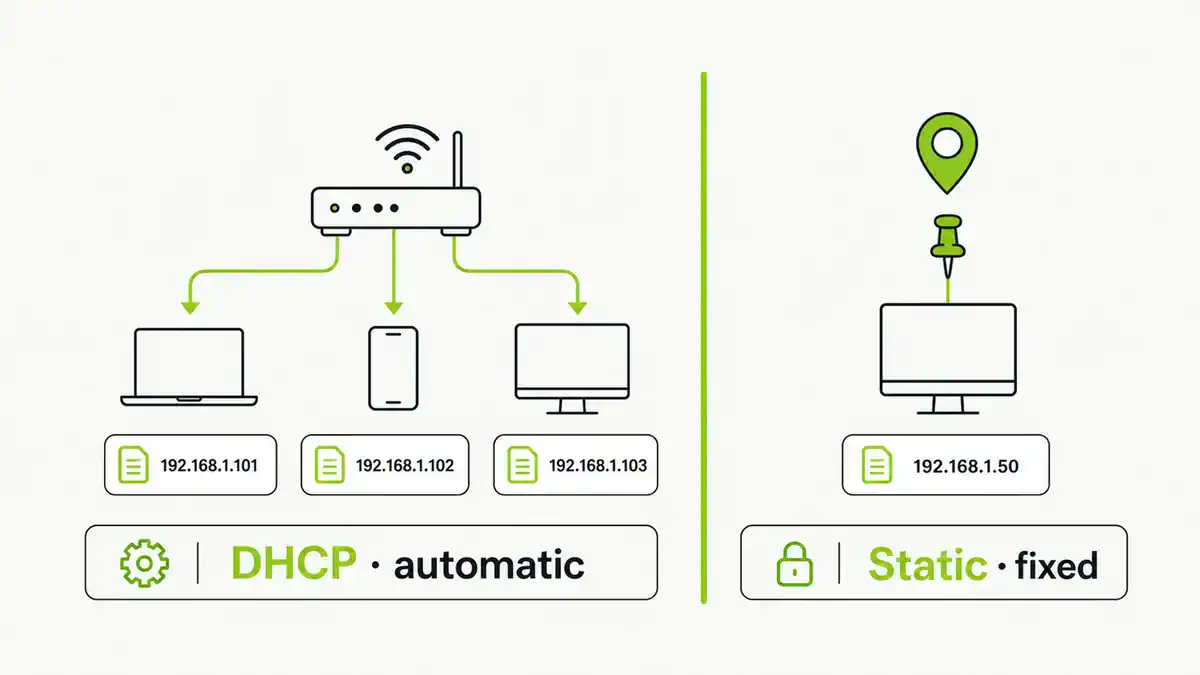
Most home networks hand out DNS settings using DHCP. Your laptop does not choose its DNS server from thin air. The router usually gives it one.
Log into the router and check:
- WAN internet status.
- DNS servers received from the ISP.
- LAN DHCP DNS settings.
- Whether the router points clients to itself as DNS.
- Whether custom DNS servers are configured.
- Whether parental control, security filtering, or ad blocking is enabled.
A very common pattern:
- The router gives clients
192.168.1.1as DNS. - The router forwards DNS to the ISP.
- The ISP resolver fails.
- Every device reports DNS errors even though Wi-Fi is connected.
Another common pattern:
- The router gives clients a Pi-hole address, such as
192.168.1.10. - The Pi-hole is offline.
- Clients keep trying to use it.
- DNS fails across the network.
If you run Pi-hole, make sure the Pi-hole host is online, has a static IP, has upstream DNS configured, and is not blocked from reaching the internet. If you are setting Pi-hole up from scratch, the Raspberry Pi guide here is a good companion piece: How to Install and Configure Pi-hole on Raspberry Pi OS.
Watch for VPN DNS problems
VPN clients often take control of DNS. That is usually intentional. A VPN may push corporate DNS servers, private search domains, split-tunnel routes, or DNS leak protection.
The problem is that DNS can break even when the VPN tunnel itself appears connected.
Symptoms:
- Internet works before connecting the VPN.
- DNS fails after connecting the VPN.
- Internal company names work, but public websites fail.
- Public websites work, but internal names fail.
- DNS works on full tunnel but fails on split tunnel.
Check the DNS server after connecting the VPN. On Windows, run:
ipconfig /all
nslookup internal.example.local
nslookup google.com
On macOS:
scutil --dns
dig google.com
On Linux:
resolvectl status
resolvectl query google.com
If the VPN is connected but traffic or DNS is not passing correctly, it can be related to routing, firewall rules, or tunnel selectors. I covered that broader failure mode here: VPN Tunnel Up but No Traffic.
Check IPv6 before blaming DNS
IPv6 can make DNS troubleshooting confusing.
Your device may have:
- IPv4 DNS servers.
- IPv6 DNS servers.
- IPv6 connectivity that half-works.
- A router advertising IPv6 DNS servers that do not respond.
The result is annoying: some lookups or sites feel slow, intermittent, or broken.
Test IPv4 and IPv6 lookups separately:
dig A burstbytes.com.au
dig AAAA burstbytes.com.au
dig @1.1.1.1 A burstbytes.com.au
dig @2606:4700:4700::1111 AAAA burstbytes.com.au
On Windows:
nslookup -type=A burstbytes.com.au
nslookup -type=AAAA burstbytes.com.au
If IPv6 DNS is broken on your network, either fix the router advertisement/DHCPv6 settings or temporarily disable IPv6 for testing. I do not recommend permanently disabling IPv6 as a lazy fix, but it is a useful isolation step.
Check filtering and security software
DNS errors can be caused by software that deliberately intercepts DNS.
Check for:
- Antivirus web protection.
- Corporate endpoint security.
- Browser secure DNS settings.
- VPN DNS leak protection.
- DNS filtering apps.
- Parental control software.
- Local firewall rules.
- Pi-hole or AdGuard Home blocklists.
One subtle issue: modern browsers can use DNS over HTTPS. That means the browser may use a different resolver from the operating system.
If only one browser fails, check its secure DNS setting.
Chrome and Edge:
Settings -> Privacy and security -> Security -> Use secure DNSFirefox:
Settings -> Privacy & Security -> DNS over HTTPSFor troubleshooting, temporarily disable browser-level secure DNS and test again. If DNS starts working, the browser’s configured resolver or DoH policy was the issue.
Use nslookup or dig to find where it breaks
The fastest useful DNS test is to query your configured resolver, then query a known resolver directly.
Windows:
nslookup burstbytes.com.au
nslookup burstbytes.com.au 1.1.1.1
nslookup burstbytes.com.au 8.8.8.8
macOS/Linux:
dig burstbytes.com.au
dig @1.1.1.1 burstbytes.com.au
dig @8.8.8.8 burstbytes.com.au
Interpretation:
| Test result | Likely issue |
|---|---|
| Default resolver fails, public resolver works | Local/router/ISP DNS issue |
| All resolvers fail for one domain | Domain issue, DNSSEC issue, or filtering |
| DNS works but browser fails | Browser cache, proxy, DoH, or TLS issue |
| DNS is slow but eventually works | Resolver latency, packet loss, IPv6 fallback, or filtering |
| Internal names fail only off VPN | Missing corporate DNS or search domain |
| Public names fail only on VPN | VPN DNS policy or routing issue |
This small comparison saves a lot of guessing.
Check for packet loss to the resolver
If DNS sometimes works and sometimes fails, test reachability to the resolver.
ping -c 20 1.1.1.1
ping -c 20 8.8.8.8
On Windows:
ping -n 20 1.1.1.1
ping -n 20 8.8.8.8
If you see packet loss, the DNS error may be a symptom of a broader connection issue.
You can also test DNS over UDP and TCP:
dig @1.1.1.1 burstbytes.com.au +udp
dig @1.1.1.1 burstbytes.com.au +tcp
Most DNS queries use UDP. TCP is used for large responses, retries, and some specific cases. If UDP fails but TCP works, a firewall or network device may be interfering with UDP/53.
When DNSSEC is the problem
DNSSEC validates that DNS answers have not been tampered with. It is useful, but broken DNSSEC records can make a domain fail on validating resolvers while still appearing to work on others.
Signs of DNSSEC trouble:
- One domain fails, but most domains work.
- The domain fails on Quad9 or Cloudflare but works on a non-validating resolver.
- Errors mention validation, SERVFAIL, or bogus DNSSEC.
Test:
dig +dnssec example.com
dig @1.1.1.1 example.com
dig @8.8.8.8 example.com
If this is your own domain, check DS records at the registrar and DNSSEC signing at the authoritative DNS provider. A bad DS record at the parent zone is a classic way to break an otherwise healthy domain.
The practical fix sequence
Use this checklist in order.
- Test IP connectivity with
ping 1.1.1.1. - Test DNS with
ping google.comornslookup google.com. - Check your current DNS server.
- Flush the DNS cache.
- Renew DHCP.
- Query a public resolver directly.
- Temporarily set DNS to 1.1.1.1, 8.8.8.8, or 9.9.9.9.
- Restart the affected network adapter.
- Restart the router if multiple devices fail.
- Check VPN DNS settings.
- Check Pi-hole, AdGuard Home, Unbound, or local DNS services.
- Check IPv6 DNS behavior.
- Check browser secure DNS.
- Check firewall or security filtering.
- If only one domain fails, check the domain’s DNS records and DNSSEC.
Most home-user DNS issues are fixed by steps 3-7. Most business VPN DNS issues are found around steps 10-12.
Common mistakes
Mistake 1: Changing DNS before checking basic connectivity
If you cannot ping an IP address, DNS is probably not your first problem. Check Wi-Fi, Ethernet, gateway, ISP status, firewall, and routing.
Mistake 2: Forgetting the router is the DNS server
Many devices show the router IP as DNS. That does not mean the router is the final resolver. The router may be forwarding to ISP DNS, public DNS, or a local resolver.
Mistake 3: Leaving only one DNS server configured
If you point every device to one local resolver and that resolver goes down, the network feels broken. Use a deliberate design: either make the resolver highly available or know how to bypass it quickly.
Mistake 4: Ignoring VPN DNS
VPN clients often override DNS by design. Always check DNS before and after connecting.
Mistake 5: Treating every DNS error as the same
NXDOMAIN, SERVFAIL, timeout, and “server not responding” point to different failure types. The exact error matters. If Chrome shows the NXDOMAIN version, use the dedicated DNS_PROBE_FINISHED_NXDOMAIN fix guide before changing unrelated network settings.
FAQ
Why does my computer say DNS server not responding when Wi-Fi is connected?
Wi-Fi only means your device is connected to the local wireless network. DNS still needs a working path to a resolver. You can have excellent Wi-Fi signal while your router, ISP DNS, VPN DNS, or local resolver is failing.
What DNS server should I use?
For quick testing, use Cloudflare 1.1.1.1, Google Public DNS 8.8.8.8, or Quad9 9.9.9.9. For a permanent choice, consider latency, privacy policy, filtering needs, malware blocking, and whether you want DNS over HTTPS or DNS over TLS.
Is DNS server not responding an ISP problem?
Sometimes. If every device on the network fails and switching from ISP DNS to public DNS fixes it, the ISP resolver may be the issue. If IP connectivity also fails, the problem is broader than DNS.
Can a VPN cause DNS server not responding?
Yes. VPN clients can push DNS servers, block outside DNS to prevent leaks, or rely on routes that are not working. If DNS breaks only while the VPN is connected, inspect the VPN DNS and routing configuration.
Should I disable IPv6 to fix DNS?
Disable IPv6 only as a temporary test. If disabling IPv6 makes DNS reliable, fix the IPv6 configuration on the router, ISP connection, VPN, or resolver. Permanent IPv6 disablement can hide the real issue and create future problems.
Does flushing DNS delete anything important?
No. Flushing DNS clears cached name lookups. Your device will simply ask for fresh answers next time it needs them. It does not delete browser history, saved passwords, Wi-Fi settings, or files.
Why does DNS work in one browser but not another?
One browser may be using secure DNS, a proxy, a different profile, cached state, or an extension that interferes with requests. Check browser DNS over HTTPS settings and test in a private window or another browser.
Final thoughts
“DNS server not responding” is best handled as an isolation problem.
First prove whether the internet path works. Then prove whether DNS fails only against your configured resolver. After that, the fix is usually obvious: flush cache, renew DHCP, change resolver, fix the router, repair VPN DNS, or bring the local resolver back online.
The mistake is treating DNS like magic. It is just another path: client, resolver, upstream resolver, authoritative DNS, answer, cache. Find where that chain breaks and the error stops being vague.
Sources and useful references
- Microsoft ipconfig command documentation
- Google Public DNS getting started
- Cloudflare 1.1.1.1 setup
- Quad9 service addresses
- resolvectl Linux manual
Get notified whenever I post something new. No spam, and it helps a lot!


Leave a Reply